
Shopify Schema Generator: Fix Broken Structured Data
By:
Review how Google Search Essentials 2024 shape Shopify Plus SEO, CRO, migration risk, and revenue so ecommerce teams can prioritize safer fixes.
A custom Shopify schema generator is the most reliable way to bypass the fragmented, duplicate structured data natively produced by out-of-the-box Liquid templates. By mapping Shopify's backend variables directly to clean JSON-LD, merchants can eliminate validation errors in Google Search Console and secure high-visibility rich snippets. In our work with merchants on Shopify Plus, we consistently find that clean, unified schema nodes are essential for maintaining search engine trust and maximizing organic click-through rates, especially during high-traffic events like BFCM.
Key Takeaways
- The Unified-Node Schema Pattern: Consolidate all product, offer, and review data into a single, nested JSON-LD block to prevent duplicate entity errors.
- Dynamic Liquid Mapping: Map real-time variables like
product.selected_or_first_available_variant.skuto eliminate price and inventory mismatches. - Zero-App Overhead: Deploy custom schema directly via
theme.liquidusing conditional rendering to protect Core Web Vitals and page speed. - Continuous Validation: Audit structured data using Google's Rich Results Test after every theme deployment or catalog update.
Why Default Shopify Themes Fail the Shopify Technical SEO Audit
A Shopify technical SEO audit is a systematic evaluation of a store's crawling, indexing, and structured data health to ensure maximum visibility in search engine results pages. During these audits, we frequently observe that default Shopify themes rely on hardcoded microdata or fragmented JSON-LD files spread across multiple snippets. Since Tobi Lütke's team introduced native schema elements, the platform has evolved, but custom overrides remain necessary for enterprise-level performance.
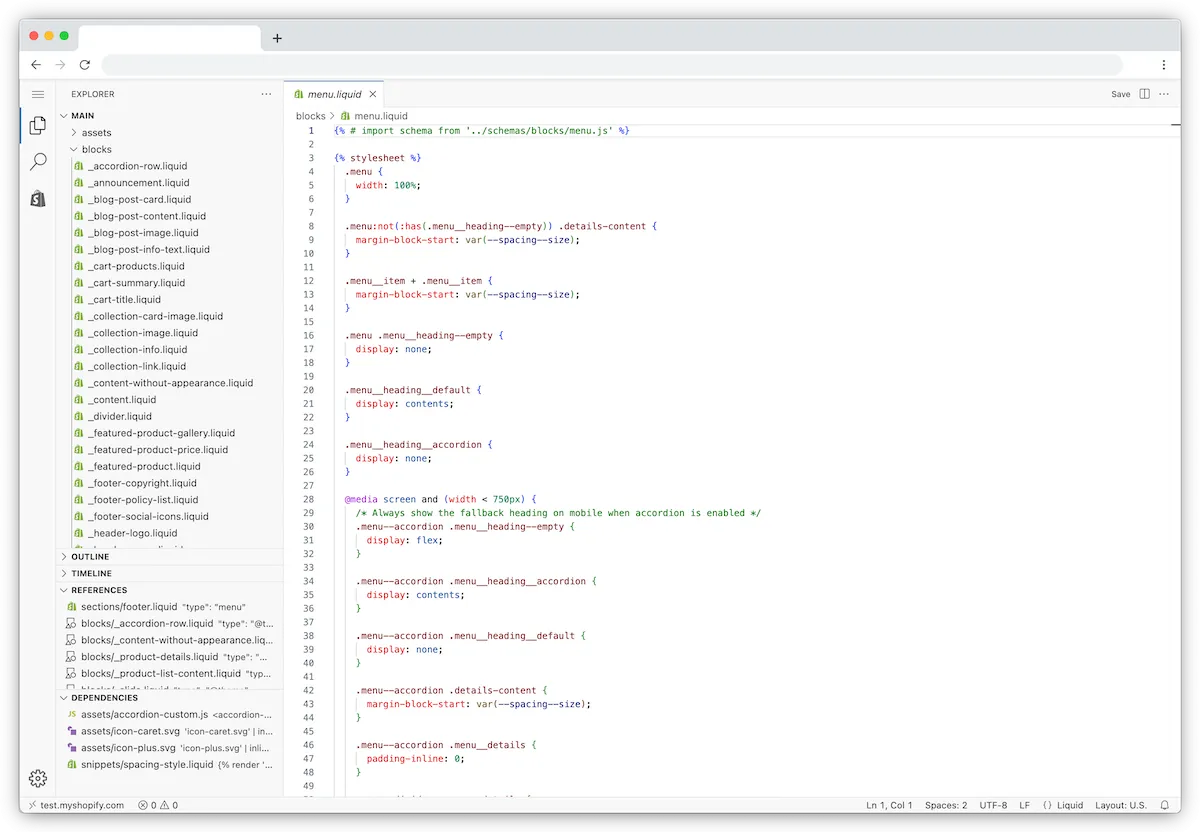
This legacy architecture creates several critical issues for search crawlers:
- Duplicate Product Entities: Themes and third-party review apps often output separate, disconnected Product schemas instead of nesting them under a single, unified node.
- Stale Variant Data: Default templates frequently output only the first variant's price, leaving other variants unmapped and triggering price-mismatch warnings.
- Missing Required Fields: Properties like
priceValidUntil,sku,mpn, andbrandare regularly left empty, resulting in warnings in Google Search Console.
To resolve these structural bottlenecks, technical teams must bypass default theme settings. Implementing dedicated technical SEO & GEO programs ensures your schema markup is clean, unified, and free of validation errors.
Comparison: Default Shopify Schema vs. Custom JSON-LD
Feature Default Shopify Schema Custom JSON-LD (Avelize Pattern) Entity Structure Fragmented / Multiple Nodes Single Unified Node Variant Accuracy First Variant Only Dynamic Real-Time Variants App Integration Disconnected Review Blocks Nested AggregateRating Performance Impact High (Multiple App Scripts) Zero (Native Liquid Render)How to Use a Shopify Schema Generator to Build Custom Product JSON-LD
A Shopify schema generator is a tool or template used to build structured JSON-LD code that accurately maps Shopify's backend Liquid variables to Google's schema.org requirements, bypassing the broken, duplicate, or incomplete structured data markup natively generated by default Shopify themes.

What to Avoid (Common Mistakes)
- Avoid Microdata: Do not use inline HTML attributes like
itemscopeoritemprop, as they are difficult to maintain and prone to breaking during design updates. - Avoid App-Generated Schema Conflicts: Never run schema apps alongside custom JSON-LD without disabling the app's structured data output first.
- Avoid Hardcoded Values: Do not hardcode prices, inventory levels, or product names, as this leads to immediate mismatches with your live store data.
How to Fix (Implementation Steps)
- Step 1: Strip all existing microdata and native JSON-LD blocks from your product templates (typically found in
product.liquidormain-product.liquid). - Step 2: Use a schema generator to output a clean, dynamic JSON-LD template.
- Step 3: Package this template into a single Shopify theme snippet for easy deployment and maintenance.
Mapping Shopify Liquid Variables to Your Custom Schema Template
To make your JSON-LD dynamic, you must map the schema.org properties to the correct Shopify Liquid variables. This ensures Google always reads real-time catalog data. While tools like Klaviyo and Triple Whale track user behavior and attribution on the frontend, clean structured data communicates directly with search crawlers on the backend.
Use the following structural mapping for your custom product schema snippet:
{
  "@context": "https://schema.org/",
  "@type": "Product",
  "name": "{{ product.title | escape }}",
  "image": [
    "{{ product.featured_image | image_url: width: 1920 }}"
  ],
  "description": "{{ product.description | strip_html | escape }}",
  "sku": "{{ product.selected_or_first_available_variant.sku }}",
  "mpn": "{{ product.selected_or_first_available_variant.barcode }}",
  "brand": {
    "@type": "Brand",
    "name": "{{ product.vendor | escape }}"
  },
  "offers": {
    "@type": "Offer",
    "url": "{{ shop.url }}{{ product.url }}",
    "priceCurrency": "{{ cart.currency.iso_code }}",
    "price": "{{ product.selected_or_first_available_variant.price | money_without_currency | remove: ',' }}",
    "priceValidUntil": "{{ 'now' | date: '%Y-%m-%d' | plus: 31536000 | date: '%Y-%m-%d' }}",
    "itemCondition": "https://schema.org/NewCondition",
    "availability": "https://schema.org/{% if product.available %}InStock{% else %}OutOfStock{% endif %}"
  }
}
If your store requires complex, multi-variant logic or custom metafield mapping, leveraging our e-commerce app and integration development services will ensure your Liquid templates compile without syntax errors. For headless builds, we query these same schema nodes via the GraphQL Storefront API or Hydrogen's built-in SEO utilities.
The Technical SEO Checklist 2026 for E-Commerce Structured Data
To secure rich snippets and avoid merchant center feed mismatches, your structured data must meet 100% of Google's strict validation requirements. While our foundational technical seo checklist 2024 focused on basic validation, our updated 2026 framework demands strict compliance with Google's merchant center feed requirements:
- Validate the Offer Node: Ensure the price property uses a raw float value (e.g., 99.99) without currency symbols.
- Define the Price Expiration: Set the
priceValidUntilproperty dynamically to a date exactly 365 days in the future. - Map Unique Identifiers: Populate both
skuandmpn(using the barcode field) to resolve critical merchant feed warnings. - Nest Review Data: Ensure your third-party review app injects
aggregateRatingandreviewinside the main Product node, not as a standalone schema. - Set Organization Details: Implement structured data for your home and collection pages using WebSite, Organization, and BreadcrumbList schemas.
How to Run a Shopify Technical SEO Audit to Debug Schema Errors
Before launching custom schema, you must audit your existing setup to identify duplicate nodes and validation warnings.
Start by running your product URLs through Google's Rich Results Test and the Schema Markup Validator. Look closely for duplicate Product entities. If you see more than 1 Product node listed for a single product page, your theme has a schema duplication issue.
To diagnose and clean up your site architecture, a complete technical SEO & data audit can pinpoint exactly where legacy apps or hidden theme files are injecting conflicting code.
Deploying and Testing Your Custom JSON-LD Code in theme.liquid
Once your Liquid-mapped schema template is ready, you must deploy it safely without impacting frontend page speed or layout rendering.
- Step 1: In your Shopify Admin, go to Online Store > Themes > Edit Code.
- Step 2: Under the "Snippets" directory, click "Add a new snippet" and name it
seo-schema.liquid. - Step 3: Paste your custom JSON-LD code into this file and save it.
- Step 4: Open your
theme.liquidfile, locate the closing</head>tag, and insert the following conditional render tag directly above it:
{% if template contains 'product' %}
  {% render 'seo-schema' %}
{% endif %}
Using conditional tags ensures this heavy data block only loads on product pages, keeping your collection and home pages lightweight. After saving, run your live URL through the Rich Results Test to verify that Google detects your new, unified Product schema with 0 errors and warnings.
How Avelize Approaches Structured Data Optimization
We engineer schema solutions that protect your organic search footprint while maintaining peak site performance. Our structured data optimization process is designed for high-growth merchants:
- Phase 1: Schema Audit & Conflict Resolution (Timeline: Week 1 | KPI: Identify and disable 100% of conflicting app-generated schemas).
- Phase 2: Custom JSON-LD Engineering (Timeline: Week 2 | KPI: Deploy unified-node schema with zero validation errors).
- Phase 3: Merchant Center Alignment (Timeline: Week 3 | KPI: Eliminate price and availability mismatches in Google Merchant Center).
Ready to eliminate validation errors and maximize your organic search footprint? Explore our specialized technical SEO & GEO programs or contact our engineering team to deploy a custom schema architecture for your store.
Published / Last reviewed: October 24, 2026
Search Intent Refresh Notes
This page has search demand in Google Search Console. Refresh it around the highest-impression query language, add concrete examples, clarify the decision criteria, and link to the most relevant service page or related guide.
Authoritative References
Use these official resources to verify platform-specific claims and implementation details before making commercial or technical decisions.
- Shopify Plus overview
- Google SEO Starter Guide
- Google canonicalization guide
- Google structured data introduction
Related Avelize Services: Services · Ecommerce Web Design Agency