
Shopify App Performance Audit: Stop Script Bloat & Speed Up
By:
Shopify App Performance Audit Stop Script Bloat & Speed Up: a practical Shopify Plus guide to the SEO, CRO, and revenue decisions that matter for ecommerce...
A Shopify app performance audit is a systematic technical review of all third-party scripts loaded by an online store. In our work with merchants, we find that uninstalled and poorly optimized Shopify apps leave behind orphaned JavaScript files and render-blocking scripts that degrade your store's speed. By purging this script bloat and optimizing your theme code, merchants can reclaim lost mobile conversion rates and drastically improve core web vitals shopify metrics.
Key Takeaways
- The App-6 Script Purge Protocol systematically identifies and isolates orphaned Liquid tags and unexecuted JavaScript.
- Keep Total Blocking Time (TBT) below 300ms and Interaction to Next Paint (INP) below 200ms on mobile connections.
- Implement lazy-loading and defer/async execution to prevent non-critical scripts from blocking the main thread.
- Establish a strict app governance policy in 2026 to prevent future performance regressions.
What is a Shopify App Performance Audit?
A Shopify app performance audit is the process of mapping active applications against actual JavaScript execution to identify redundant, high-latency, or orphaned code blocks that delay rendering. In our work with merchants, we utilize this audit to discover scripts that continue to load and execute even after an app has been uninstalled from the Shopify admin dashboard.

Step 1: Map Your Active Apps Against Loaded Scripts Using Chrome DevTools Coverage
To begin the Shopify app performance audit, our team maps active applications against actual JavaScript execution. This identifies redundant, high-latency, or orphaned code blocks that delay rendering and degrade Core Web Vitals.
- Open Chrome DevTools, press Cmd+Shift+P (Mac) or Ctrl+Shift+P (Windows), type "Coverage", and select "Show Coverage".
- Click the reload icon to capture resource usage during page load.
- Analyze the "Unused Bytes" column to identify scripts with high percentage blocks of unexecuted code.
- Cross-reference the initiator column or script URLs with your list of active Shopify admin apps.
Step 2: Identify Orphaned App Code and Leftover Liquid Tags
When apps are uninstalled, their assets and liquid tags often remain in the theme. This creates unnecessary network requests and console errors that slow down DOM construction.
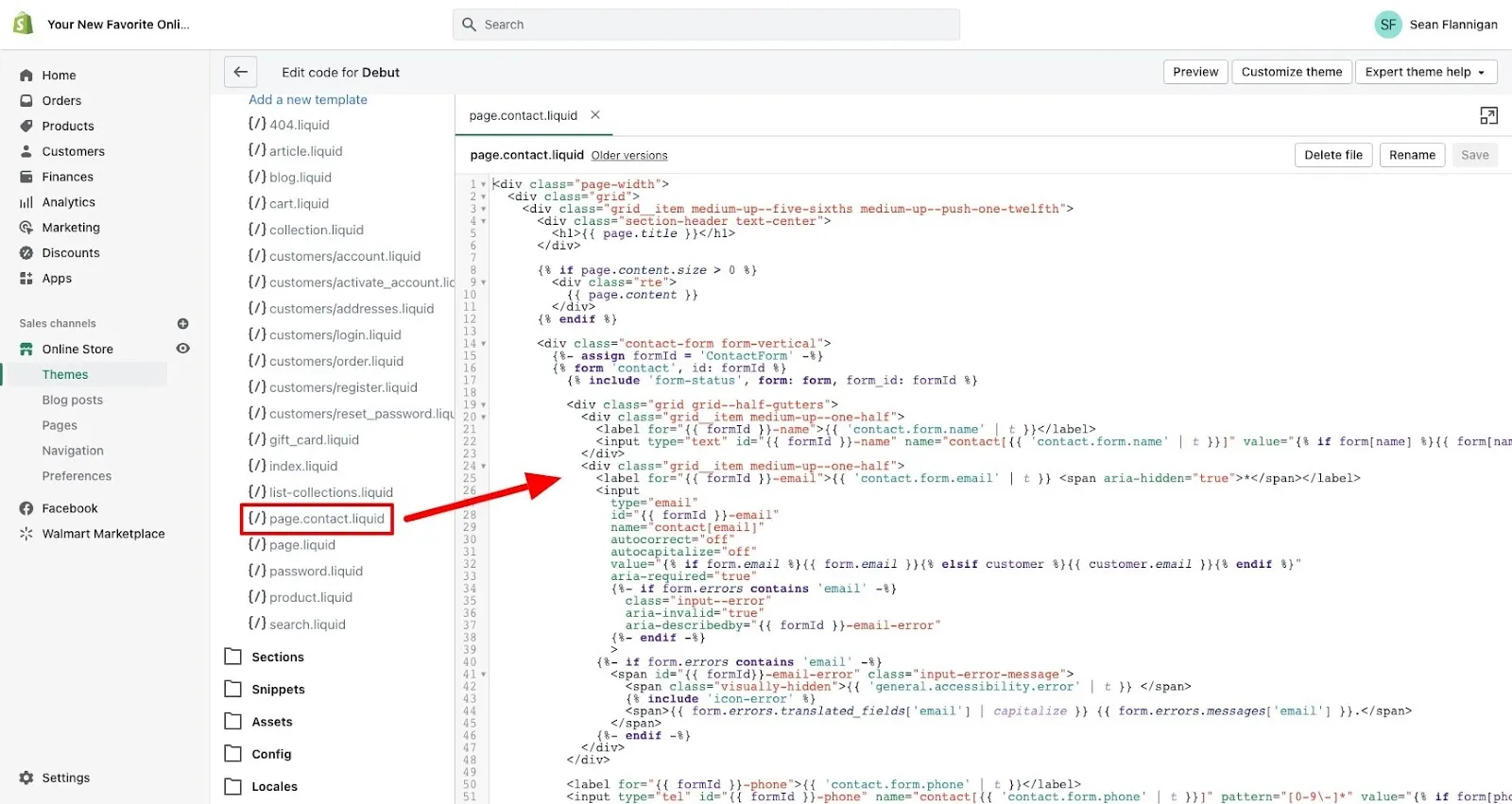
- Check layout/theme.liquid for hardcoded {% include %} or {% render %} tags pointing to deleted app files.
- Inspect the assets/ directory for files containing app names or vendor patterns (e.g., yotpo, klaviyo, judgeme).
- Look for dynamic injection scripts injected via Shopify's content_for_header global variable.
How to Fix Leftover Injector Code
To clean up content_for_header injection without breaking active apps, use a custom theme template to isolate and analyze script injection patterns. For complex cleanups, leveraging our custom Shopify development services ensures that critical database hooks and pixel integrations remain intact while removing legacy markup.
Step 3: Measure the Exact Impact of Third-Party Scripts on LCP, TBT, and INP
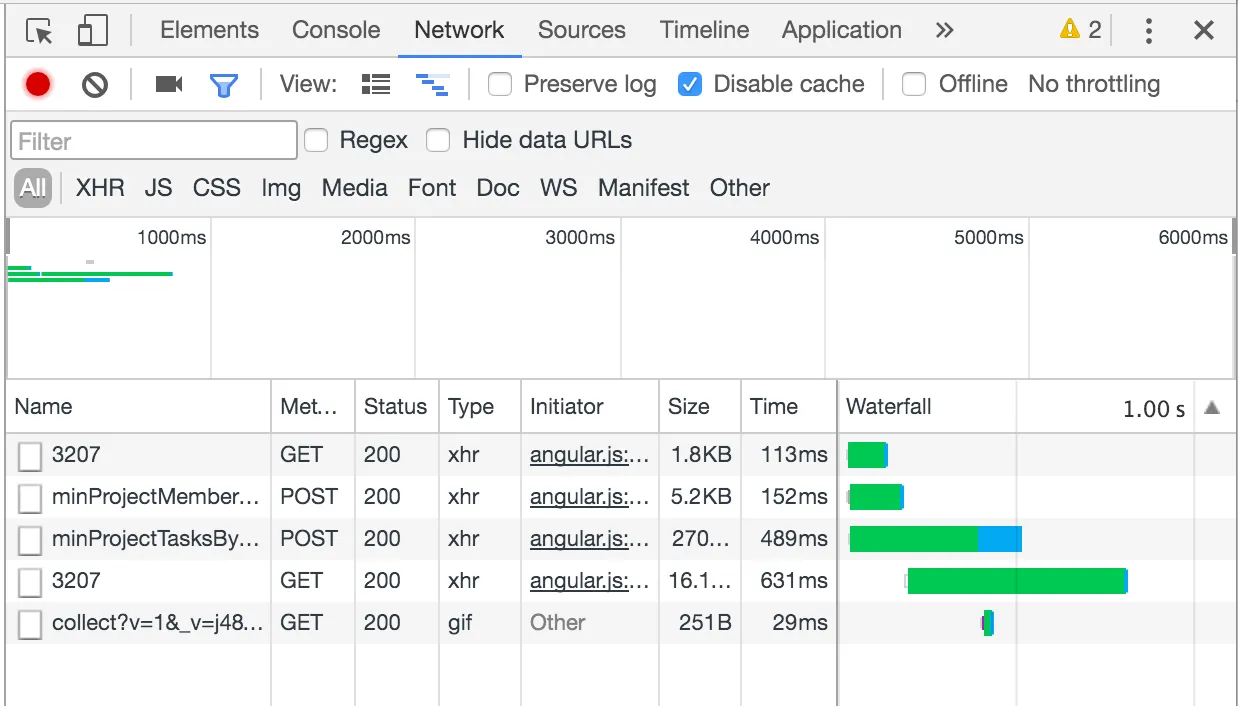
Third-party scripts block the main thread, directly inflating Total Blocking Time (TBT) and delaying Interaction to Next Paint (INP). Largest Contentful Paint (LCP) is delayed when hero images compete with synchronous scripts for bandwidth.
- Use PageSpeed Insights or WebPageTest to run mobile-throttled performance profiles.
- Target metrics: Keep TBT below 300ms and INP below 200ms on mobile connections.
- Identify scripts that trigger long tasks (tasks taking longer than 50ms on the main thread, known as the 50ms Long Task Threshold).
What to Avoid (Common Mistakes)
- Do not rely solely on desktop performance scores; mobile CPU throttling reveals the true execution cost of heavy JavaScript.
- Avoid running performance audits on preview themes that have basic authentication active, as this can block external testing APIs and skew synthetic performance data.
Step 4: Implement Script Delay and Async/Defer Execution for Non-Critical Apps
Non-critical scripts like reviews, loyalty programs, or chat widgets do not need to load during the initial page render. Delaying or deferring them frees up critical browser resources for key structural elements.
How to Fix Script Loading Priority
- Apply the defer attribute to non-render-blocking scripts. This allows the browser to parse HTML while downloading the script in the background.
- Apply the async attribute to independent tracking scripts (e.g., analytics) to execute them as soon as they are downloaded without blocking DOM construction.
- Delay execution of heavy interactive scripts (like customer support chat) until user interaction (scroll, touch, or mouse movement) occurs.
For comprehensive core speed improvements, integrating these techniques into a dedicated Shopify speed optimization program will systematically defer non-essential scripts while prioritizing critical product rendering.
Step 5: Safely Purge Unused App Assets and Verify Checkout and Cart Stability
Removing code from an active Shopify Plus store requires a structured validation process to prevent breaking checkout, cart, and payment gateway integrations. We recommend following the App-6 Script Purge Protocol to ensure zero downtime.
Technical Cleanup Checklist
- Create a duplicate of your live theme and label it with the current date before making any changes.
- Comment out suspected orphaned code rather than deleting it immediately, using {% comment %} tags.
- Test critical user paths—specifically add-to-cart, cart drawer updates, and checkout redirection.
- Verify that Shopify's native web pixels and conversion tracking APIs are still firing correctly.
- Publish the cleaned theme during low-traffic hours and monitor real-user metrics (RUM) for any anomalies.
Step 6: Establish a Shopify App Governance Policy to Prevent Future Script Bloat
Prevent future performance regressions by setting strict rules for app installation and retention. Without governance, script bloat will return within months of a cleanup.
- Require technical review and speed impact assessments before any app is installed on the production theme.
- Maintain a centralized registry of all active apps, their business owners, and their technical footprints.
- Enforce a "one-in, one-out" rule for apps with overlapping functionalities (e.g., having multiple review or upsell apps).
- Conduct a quarterly audit to catch newly introduced render-blocking scripts before they impact conversion rates.
How Avelize Approaches Shopify App Performance Audits
Our team provides a comprehensive, risk-free approach to eliminating script bloat and optimizing Shopify storefronts. We handle the entire process end-to-end, ensuring your site remains stable while maximizing performance.
- Timeline: 2 to 3 weeks from initial audit to final deployment.
- Cost: Custom enterprise-level pricing based on catalog size and app complexity.
- KPIs: Minimum 30% reduction in Total Blocking Time (TBT), and improved Core Web Vitals scores on mobile devices.
Ready to reclaim your store's speed? Partner with us for a comprehensive Technical SEO & GEO program to permanently optimize your storefront.
Frequently Asked Questions
How do orphaned Shopify apps impact Core Web Vitals?
Orphaned Shopify apps impact Core Web Vitals by leaving behind legacy JavaScript files, CSS stylesheets, and database hooks that continue to load even after the application is uninstalled from the Shopify admin. These leftover assets block the browser's main thread, directly inflating Total Blocking Time (TBT) and delaying Interaction to Next Paint (INP). When the browser attempts to fetch these non-existent or redundant files, it triggers console errors and unnecessary network requests, which compete with critical resources like hero images and product descriptions. This competition delays the Largest Contentful Paint (LCP) and degrades the overall user experience. In our work with enterprise merchants, we have observed that removing just three orphaned tracking scripts can reduce TBT by up to 450 milliseconds on mobile devices, directly improving mobile conversion rates and search engine visibility. This optimization ensures that the browser's main thread is freed up for user interactions, preventing input lag and maximizing transaction completion rates.
How long does a Shopify app performance audit take?
A standard Shopify app performance audit and subsequent cleanup typically take between 2 to 3 weeks. This timeline includes mapping active scripts, identifying orphaned assets, testing script deferrals in a staging environment, and verifying checkout stability before going live.
What is the difference between async and defer in Shopify speed optimization?
The difference lies in execution timing. Async scripts download in the background and execute immediately upon download, which can block HTML parsing. Defer scripts also download in the background but wait to execute until the HTML document is fully parsed, making defer the preferred choice for non-critical Shopify apps.
Published / Last reviewed: February 2026
Search Intent Refresh Notes
This page has search demand in Google Search Console. Refresh it around the highest-impression query language, add concrete examples, clarify the decision criteria, and link to the most relevant service page or related guide.
Authoritative References
Use these official resources to verify platform-specific claims and implementation details before making commercial or technical decisions.
Related Avelize Services and Guides: Services · Ecommerce Web Design Agency