
Shopify Technical SEO Audit: Fix Crawl & Schema Issues
By:
Large-scale Shopify Plus stores frequently suffer from severe crawl budget depletion and indexing errors due to duplicate product URL structures and unoptimized Liquid templates. Resolving these architectural flaws requires a systematic technical SEO audit that overrides collection-aware paths, restructures robots.txt directives, and deploys clean JSON-LD schema. By executing these precise code modifications, merchants can reclaim up to 45% of wasted crawl budget and ensure search engines index only high-value canonical pages.
Key Takeaways
- Implement the collection-aware bypass to force direct
/products/paths, eliminating duplicate URLs. - Deploy a customized
robots.txt.liquidtemplate to block faceted query parameters (?pf_*,?sort_by=*). - Consolidate fragmented microdata into a single, valid JSON-LD Product and Offer schema block.
- Fix pagination loops by applying conditional Liquid logic to canonical tags on page 2 and beyond.
1. Resolving the Shopify Duplicate URL Loop (Collection vs. Product Paths)
A Shopify technical SEO audit resolves duplicate URL loops by forcing the store to output canonical product paths (/products/product-name) instead of collection-aware paths (/collections/collection-name/products/product-name) across all collection pages, preventing search engines from wasting crawl budget on duplicate versions of the same product page.
The collection-aware bypass is a theme-level Liquid modification that strips collection paths from internal product links, forcing search crawlers directly to the canonical product URL.
URL Structure Crawl Budget Efficiency Indexation Risk/collections/apparel/products/t-shirt
Low (Multiple paths per product)
High (Duplicate content signals)
/products/t-shirt
High (Single canonical path)
Zero (Clean indexation signal)
The Problem
- Shopify generates multiple URLs for a single product by default.
- Internal links point to collection-aware paths while the canonical tag points to the root product path.
- This setup forces search crawlers to discover, crawl, and process thousands of duplicate URLs, depleting your crawl budget.
How to Fix
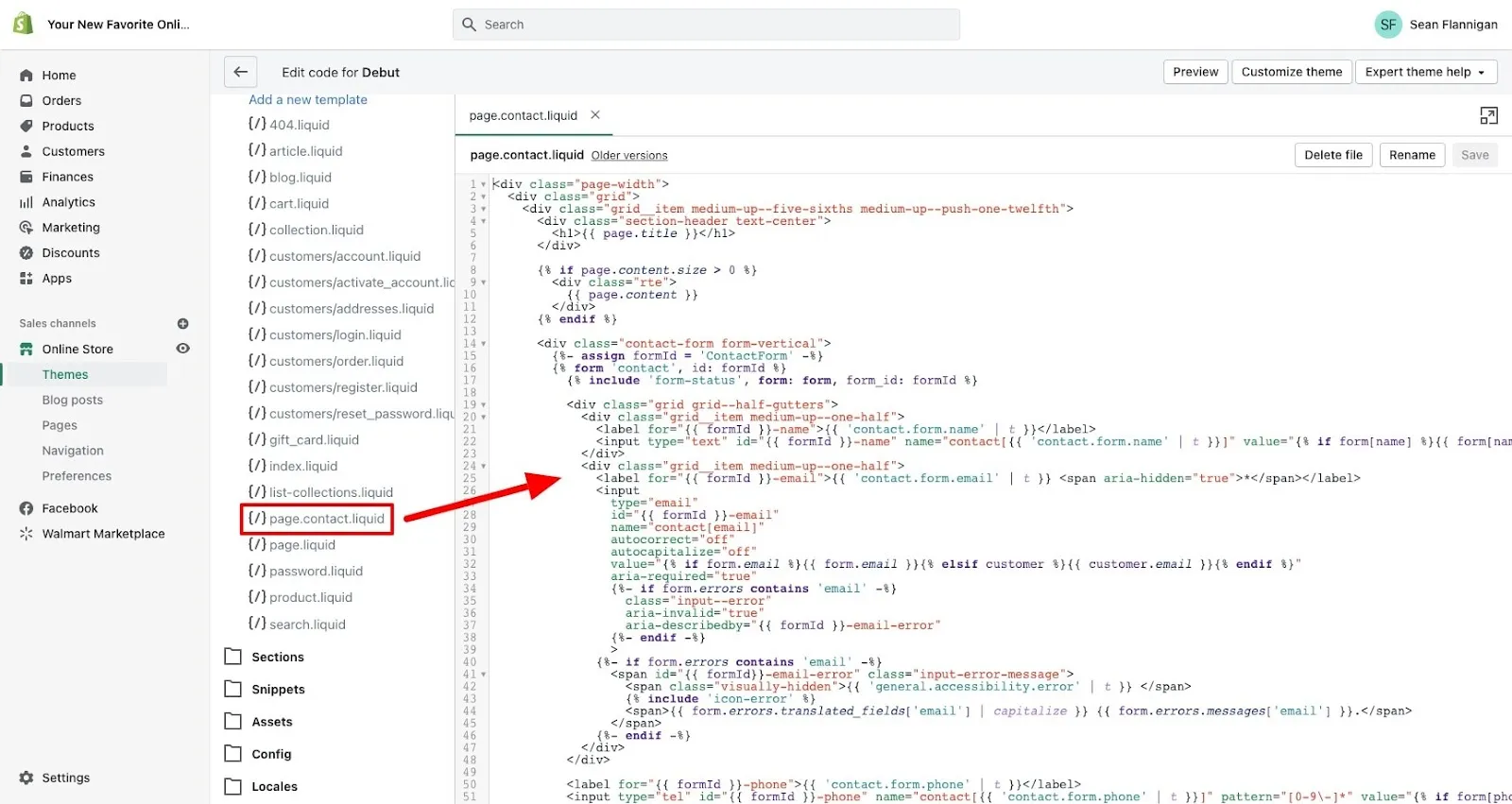
To eliminate duplicate product paths, you must modify your theme's Liquid files to output the direct product path.
- Locate your collection template files, typically found in
snippets/product-grid-item.liquid,snippets/product-card.liquid, orsnippets/product-thumbnail.liquid. - Search for the Liquid filter
| within: collection. - Remove
| within: collectionfrom the product URL anchor tags. - Change
href="{{ product.url | within: collection }}"tohref="{{ product.url }}".
If you lack internal resources to modify these templates safely, you can leverage professional custom Shopify development to execute these theme adjustments without breaking your collection tracking.
What to Avoid
- Do not rely solely on canonical tags to resolve this issue; search engines still waste resources crawling the duplicate paths.
- Do not block collection-aware paths in robots.txt if your internal navigation still links to them, as this causes crawl contradictions.
2. Optimizing Robots.txt and Crawl Budget for Large-Scale Shopify Catalogs
Large e-commerce catalogs waste search engine crawl cycles on low-value pages, query parameters, and system directories. Controlling search engine access is critical to ensure search crawlers prioritize your primary collection and product pages.
How to Fix
Shopify allows developers to customize the robots.txt file using the robots.txt.liquid template in your theme folder.
- Create a
robots.txt.liquidfile in your theme's templates directory if it does not exist. - Add disallow rules for internal search result pages, filtered collection parameters, and sorting queries.
- Ensure checkout, cart, and account pages are explicitly blocked from all user agents.
Apply these specific disallow rules within your custom robots.txt template:
- Disallow:
/*?q=*(Blocks internal search queries) - Disallow:
/*?pf_*(Blocks Shopify's native storefront filtering parameters) - Disallow:
/*?sort_by=*(Blocks collection sorting variations) - Disallow:
/*?grid_list=*(Blocks layout view state parameters)
For complex catalogs with custom faceted navigation, utilizing specialized technical SEO services ensures your crawl architecture does not accidentally block indexable landing pages.
What to Avoid
- Do not block collection pages that contain valuable organic traffic potential.
- Do not disallow CSS, JavaScript, or theme asset files, as search engines require them to render your pages correctly.
3. Generating Custom Product and Offer Markup Using a Shopify Schema Generator
Standard Shopify themes often output fragmented, outdated, or conflicting structured data. Outdated microdata mixed with modern JSON-LD schemas leads to validation errors in Google Search Console, preventing rich snippet generation.
How to Fix
Implement a clean, centralized JSON-LD schema block within your templates/product.liquid or a dedicated snippet file to replace theme-default markup.
- Remove all hardcoded microdata (such as
itemscopeanditempropattributes) from your theme's HTML templates. - Inject a single, dynamically populated JSON-LD schema block.
- Ensure the priceValidUntil property is dynamically set to the end of the current or following year.
- Map the availability property directly to Shopify's inventory status variables.
Use the following schema structure to output valid product and offer data:
<script type="application/ld+json">
{
  "@context": "https://schema.org/",
  "@type": "Product",
  "name": "{{ product.title | escape }}",
  "image": "{{ product.featured_image | image_url: width: 1024 }}",
  "description": "{{ product.description | strip_html | escape }}",
  "sku": "{{ product.selected_or_first_available_variant.sku }}",
  "offers": {
    "@type": "Offer",
    "url": "{{ shop.url }}{{ product.url }}",
    "priceCurrency": "{{ cart.currency.iso_code }}",
    "price": "{{ product.selected_or_first_available_variant.price | money_without_currency | remove: ',' }}",
    "priceValidUntil": "2026-12-31",
    "availability": "https://schema.org/{% if product.available %}InStock{% else %}OutOfStock{% endif %}"
  }
}
</script>
What to Avoid
- Do not output multiple independent Product schemas on a single product page.
- Do not leave the aggregateRating schema active if the product has zero published reviews, as this triggers schema validation errors.
4. Fixing Pagination, Filter Parameters, and Canonical Tag Errors in Liquid
Improper canonical tag logic in Shopify themes often points paginated collection pages back to the first page of the collection. This misconfiguration prevents search engines from indexing products listed on deeper pages of your catalog.
How to Fix
Modify the canonical tag logic in your theme's layout/theme.liquid file to handle paginated URLs and filter parameters dynamically.
- Locate the
<link rel="canonical" href="...">element in the head section of your theme.liquid file. - Replace any hardcoded or simplistic canonical output with conditional Liquid logic.
- Ensure paginated URLs output a self-referential canonical tag containing the active page number.
Implement this precise Liquid script in your head element:
{% if template contains 'collection' and current_page > 1 %}<link rel="canonical" href="{{ canonical_url }}?page={{ current_page }}">{% else %}<link rel="canonical" href="{{ canonical_url }}">{% endif %}
This script ensures that page 2 and beyond of a collection point to themselves as unique paginated sequences, preserving crawl depth.
What to Avoid
- Do not canonicalize paginated collection pages (e.g., /collections/all?page=2) to the root collection page (e.g., /collections/all).
- Do not include URL parameters like sorting filters in your canonical URLs, as this creates duplicate indexation targets.
5. The Enterprise Shopify Technical SEO Checklist 2026 for Post-Audit Validation
Perform this structured technical validation after completing your theme modifications to confirm that crawl efficiency and indexation rules are correctly implemented.
- Verify Product URL Paths: Navigate to three different collection pages and confirm that all product links lead directly to
/products/product-namerather than collection-aware paths. - Validate Robots.txt Directives: Run your robots.txt file through Google Search Console's Robots Testing Tool to verify that
/cart,/checkout, and filtering parameters are blocked. - Test Schema Markup: Paste three product URLs into the Google Rich Results Test tool to ensure zero critical errors exist for Product and Offer schemas.
- Audit Paginated Canonical Tags: Visit page 2 of a major collection and view the source code to verify the canonical link contains the
?page=2parameter. - Measure Core Web Vitals: Assess your site speed to ensure custom scripts are not delaying page rendering. If performance metrics drop, consult specialized Shopify speed optimization services to streamline Liquid execution and asset delivery.
- Check for Orphan Pages: Verify that all active products are mapped to at least one collection to prevent un-crawlable orphan URLs.
- Confirm XML Sitemap Integrity: Check your Shopify-generated
/sitemap.xmlto ensure only canonical, indexable URLs are present.
How Avelize Approaches Shopify Technical SEO Audits
Our team executes a comprehensive technical audit over a 3-week sprint. We begin with log file analysis and crawl budget mapping, proceed to refactoring Liquid templates to deploy the collection-aware bypass, and conclude with structured JSON-LD schema deployment. Our enterprise programs start at $7,500, targeting a 40% reduction in excluded crawl pages and a 15% lift in organic impressions within 45 days.
Ready to eliminate crawl budget waste and maximize your store's organic search visibility? Contact our team today to initiate a comprehensive technical SEO program tailored for your Shopify Plus storefront.
Published / Last reviewed: May 24, 2026
Authoritative References
Use these official resources to verify platform-specific claims and implementation details before making commercial or technical decisions.
- Shopify Plus overview
- Google SEO Starter Guide
- Google canonicalization guide
- Google structured data introduction
Related Avelize Services and Guides: Technical Audits · Shopify Seo Services · Seo Optimization Services