
Shopify Technical SEO Audit Checklist (2026 Guide)
By:
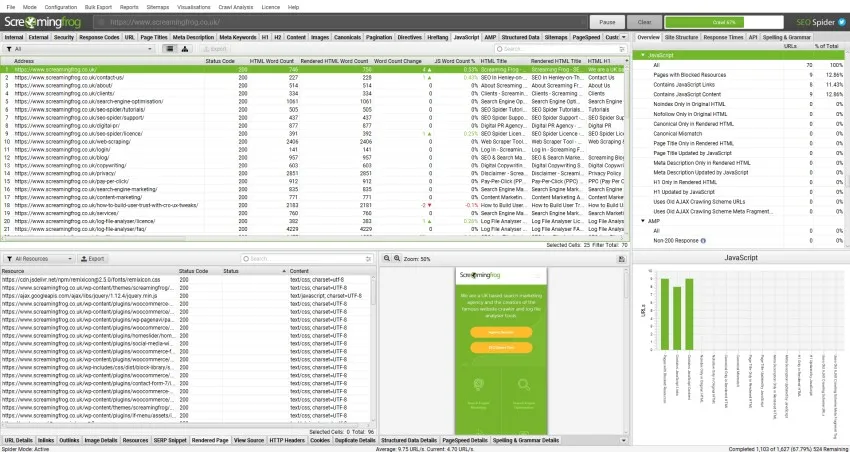
An enterprise Shopify technical SEO audit requires isolating platform-specific crawl bottlenecks, consolidating fragmented JSON-LD schemas, and pruning render-blocking JavaScript payloads. By resolving duplicate collection-aware product URLs and optimizing Liquid rendering loops, merchants can reclaim up to 40% of their crawl budget and significantly improve Core Web Vitals. This checklist outlines our agency's exact diagnostic framework for Shopify Plus and headless storefronts.
Key Takeaways
- The Liquid-Direct Link Pattern: Eliminate duplicate
/collections/*/products/*URLs by removing the| within: collectionfilter to consolidate crawl equity. - The 5-Point Screaming Frog Profile: Configure JavaScript rendering with a 5-second AJAX timeout and Googlebot Smartphone user-agent to audit dynamic app payloads.
- Unified JSON-LD Consolidation: Merge fragmented schema blocks into a single
snippets/seo-schema.liquidfile to prevent rich snippet parsing errors. - The Loop-Limit Rule: Cap Liquid
forloops at 50 items per page and implement explicit image dimensions to eliminate Cumulative Layout Shift (CLS).
Resolving Shopify's Duplicate URL and Canonicalization Issues
Duplicate collection-aware URLs are alternative product paths generated by Shopify's default linking structure, which appends the collection name to the product URL (e.g., /collections/apparel/products/t-shirt instead of /products/t-shirt). While canonical tags point to the correct version, search engines still crawl both, wasting valuable crawl budget. Fixing this requires modifying the Liquid theme files to output direct product links.
What to Avoid
- We recommend avoiding sole reliance on canonical tags to resolve duplicate URLs, as Google can ignore them and index the collection-aware path anyway.
- Avoid modifying the URL redirects manually in the admin panel for standard product paths, as this creates infinite redirect loops.
- Do not use robots.txt to block
/collections/*paths, as this prevents search engines from crawling your collection pages entirely.
How to Fix (The Liquid-Direct Link Pattern)
- Locate your collection template files, typically found in
sections/main-collection-product-grid.liquidorsnippets/product-card.liquid. - Search for the Liquid filter
| within: collection. - Remove
| within: collectionfrom the product link href attributes. For example, changehref="{{ product.url | within: collection }}"tohref="{{ product.url }}". - Save the changes and test the collection pages to ensure all product cards link directly to the canonical
/products/sub-folder.
If you are dealing with a highly customized theme, utilizing specialized Shopify development services can prevent frontend breakages during this migration.
Configuring Screaming Frog for Shopify-Specific Crawling and JavaScript Rendering
Standard crawl configurations fail to capture client-side rendered content generated by Shopify apps and dynamic collections. To get an accurate diagnostic of your store, we must configure our crawler to render JavaScript and identify Shopify's specific URL patterns.
Screaming Frog Setup Checklist
- Navigate to Configuration > Spider > Extraction and ensure "JSON-LD", "Microdata", and "RDFa" are checked.
- Go to Configuration > Spider > Rendering and switch the rendering mode from "Text Only" to "JavaScript".
- Set the Ajax timeout to 5 seconds to ensure slow-loading app scripts render completely.
- Under Configuration > User-Agent, set the User-Agent to "Googlebot Smartphone" to audit your mobile-first indexation profile.
- Set up a custom extraction rule under Configuration > Custom > Extraction with the XPath
//link[@rel='canonical']/@hrefto isolate self-referential mismatches.
What to Analyze Post-Crawl
- Filter the HTML list by "Address" to identify any crawled URLs containing
/collections/and/products/in the same path. - Compare the "Word Count" of JavaScript-rendered pages versus raw HTML to ensure critical product descriptions are not hidden from search engines.
- Check the "Response Codes" tab for 301 redirects generated by deleted products that are still receiving internal links.
Auditing and Optimizing Shopify Schema Markup (JSON-LD) for Rich Snippets
Shopify themes and third-party review apps often inject conflicting, fragmented JSON-LD schemas. This fragmentation prevents search engines from displaying rich snippets, such as review stars and pricing availability, in search results.
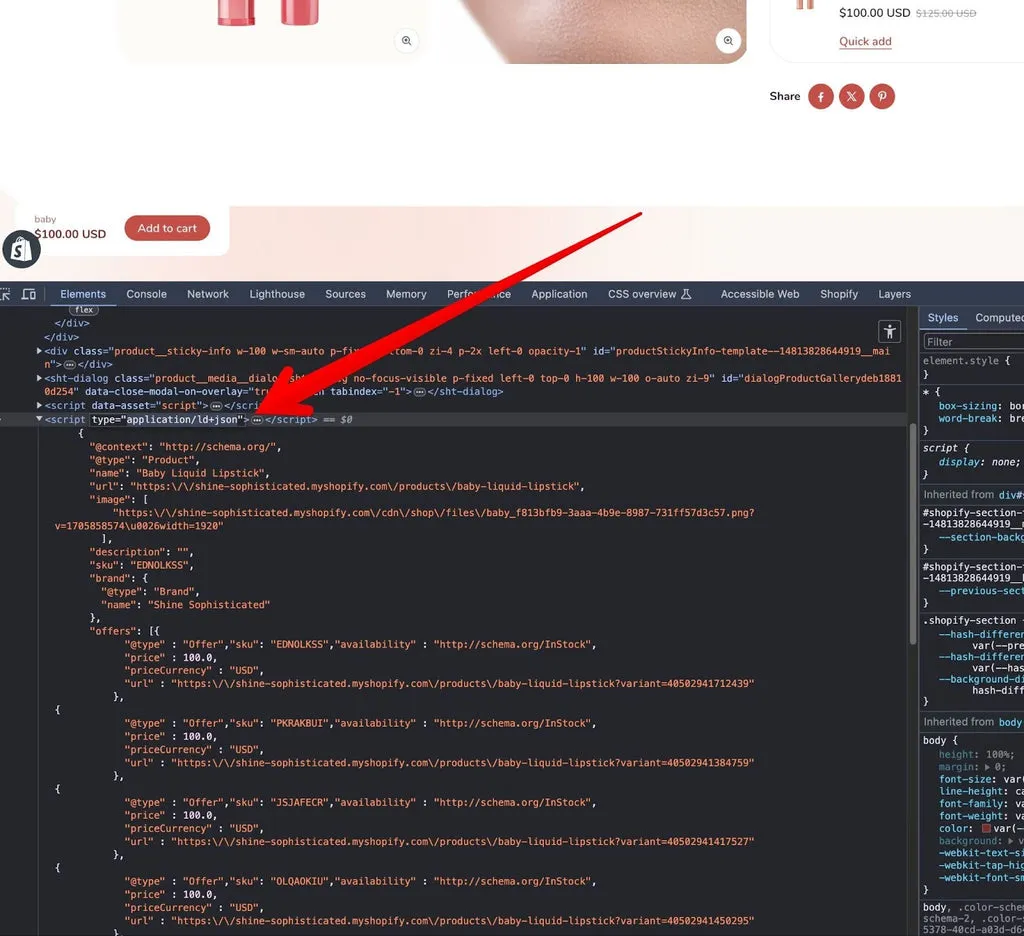
To audit and consolidate your structured data, rely on advanced SEO & Data validation protocols to ensure clean, error-free schema deployment.
Common Schema Mistakes
- Deploying multiple, disconnected
Productschema blocks on a single product page. - Leaving the
priceValidUntilfield blank, which triggers warnings in Google Search Console. - Using microdata format nested within HTML tags alongside JSON-LD blocks, creating parsing confusion for crawlers.
How to Fix
- Consolidate all structured data into a single, comprehensive JSON-LD block located in
templates/product.liquidor as a separate snippet calledsnippets/seo-schema.liquid. - Nest the
AggregateRatingandReviewschemas directly inside the mainProductschema block using the application's API hooks. - Ensure the
sku,gtin, andmpnfields dynamically pull the correct variant data using Liquid tags:"sku": "{{ product.selected_or_first_available_variant.sku }}".
Diagnosing and Fixing JavaScript SEO Bloat from Shopify Apps
Shopify apps inject JavaScript files through the {{ content_for_header }} hook, which often load render-blocking scripts on pages where they are not required. This bloat delays the browser's main thread, hurting both user experience and search engine rendering.
How to Audit Script Payload
- Open Chrome DevTools, navigate to the Coverage tab, and reload the page to measure the percentage of unused JavaScript.
- Identify scripts originating from domain names like
shopify.com/appsor third-party tag managers. - Check the Network tab to identify scripts that do not use
deferorasyncattributes.
How to Fix
- Uninstall unused apps directly from the Shopify admin; check your theme's
theme.liquidfile to manually delete residual script tags left behind by uninstalled apps. - Use a script manager or modify your theme layout to conditionally load app scripts only on pages where they are required (e.g., load review widgets only on product pages).
- Implement custom development to replace heavy, app-driven frontend features with clean, native Liquid and CSS code.
Managing Robots.txt Customization and Sitemap.xml Indexation on Shopify
Shopify automatically generates a sitemap.xml file at the root directory, but it offers limited direct control over indexation. However, we can customize the robots.txt.liquid file to prevent crawler access to low-value pages.
What to Avoid
- Do not attempt to upload a static
robots.txtfile via the files admin; Shopify will ignore it. - Avoid blocking URLs with parameters that search engines need to crawl for canonicalization verification.
- Do not index product tag pages (e.g.,
/collections/all/tag), as they create hundreds of near-duplicate thin content pages.
How to Fix
- Create a
robots.txt.liquidfile in your theme'stemplatesdirectory if it does not already exist. - Add specific disallow rules for internal search queries and filtering parameters:
Disallow: /*?q=*Disallow: /*?pr_prod_strat=*Disallow: /*+*(to block multi-tag collection filters)
- Use the
sitemap.xmlto monitor indexation status in Google Search Console, and usenoindexmeta tags in your theme layout for specific page types (like policy pages or cart pages) by using this Liquid condition:{% if template contains 'cart' or template contains 'search' %} <meta name="robots" content="noindex, follow"> {% endif %}
Core Web Vitals Audit: Optimizing Liquid Code and Image Delivery
Slow page speeds directly impact search rankings and conversion rates. Inefficient Liquid loops and unoptimized image delivery are the primary causes of high Interaction to Next Paint (INP) and Largest Contentful Paint (LCP) metrics on Shopify stores.
Liquid Optimization Checklist
- Avoid nested
forloops that scan your entire product catalog; limit loops to a maximum of 50 items per page using pagination. - Cache expensive Liquid computations using the
{% cache %}tag around static elements like navigation menus and footers. - Remove deprecated Liquid tags and filters to reduce server response time (TTFB).
Image Delivery Optimization
- Replace native HTML image elements with Shopify's
image_tagfilter, which automatically generates modern responsive image formats like WebP. - Implement explicit
widthandheightattributes on all image tags to eliminate Cumulative Layout Shift (CLS). - Apply the
loading="lazy""attribute to all below-the-fold images, while reservingloading="eager""andfetchpriority="high""for the LCP image.
How Avelize Approaches Shopify Technical SEO
We execute our technical SEO audits as a structured 4-week sprint. Our team of engineering and search specialists audits your Liquid codebase, isolates app-induced JavaScript bloat, and deploys consolidated JSON-LD schemas directly via GitHub integration. This programmatic approach typically yields a 35% improvement in crawl efficiency and resolves critical Core Web Vitals bottlenecks within 30 days of deployment. Learn more about our Technical SEO & GEO Programs to optimize your store's search performance.
Published: January 15, 2026. Last reviewed: October 24, 2026.
Related Shopify and Ecommerce Growth Guides
Continue with these related guides for implementation, SEO, performance, and conversion context.
- Shopify SEO Services: Technical Vetting Guide [2026]
- Magento to Shopify Plus Migration: SEO & Data Guide
- Shopify Markets International SEO: Technical Setup Guide
- Programmatic SEO for Ecommerce: Scale Catalog Traffic
Authoritative References
Use these official resources to verify platform-specific claims and implementation details before making commercial or technical decisions.
- Shopify Plus overview
- Google SEO Starter Guide
- Google canonicalization guide
- Google structured data introduction
Related Avelize Services and Guides: Technical Audits · Shopify Seo Services · Schema Engineering