
Shopify App Performance Audit: Clean Code & Boost Speed
By:
Shopify App Performance Audit Clean Code & Boost Speed: a practical Shopify Plus guide to the SEO, CRO, and revenue decisions that matter for ecommerce teams.
A comprehensive Shopify app performance audit is the most effective way to identify and eliminate orphaned Liquid code, legacy JavaScript, and CSS bloat left behind by uninstalled applications. In our work with merchants, we find that up to 30% of a store's total page weight often stems from these "ghost" files. By systematically auditing your theme files, network requests, and database scripts, you can reclaim lost speed, lower your Time to First Byte (TTFB), and significantly improve your Core Web Vitals.
Key Takeaways
- The Ghost Code Purge Protocol: A structured 5-step method to isolate and delete orphaned theme files without breaking production layouts.
- Target Core Web Vitals: Aim for a Time to First Byte (TTFB) under 200ms and a Largest Contentful Paint (LCP) under 2.5 seconds post-cleanup.
- App Embeds First: Transition to apps using Shopify's Theme App Extensions to prevent future code injection into core theme files.
- Zero Live Editing: Always perform audits and code deletions on a duplicate development theme to protect active store revenue.
How to Identify Ghost Code from Uninstalled Shopify Apps
A Shopify app performance audit is a systematic technical review of an e-commerce store's theme files, database scripts, and network requests to identify and remove orphaned code, unused assets, and external dependencies left behind by uninstalled applications to restore optimal page loading speeds.

To identify ghost code, we must look for remnants in three primary locations: layout files, asset folders, and network requests.
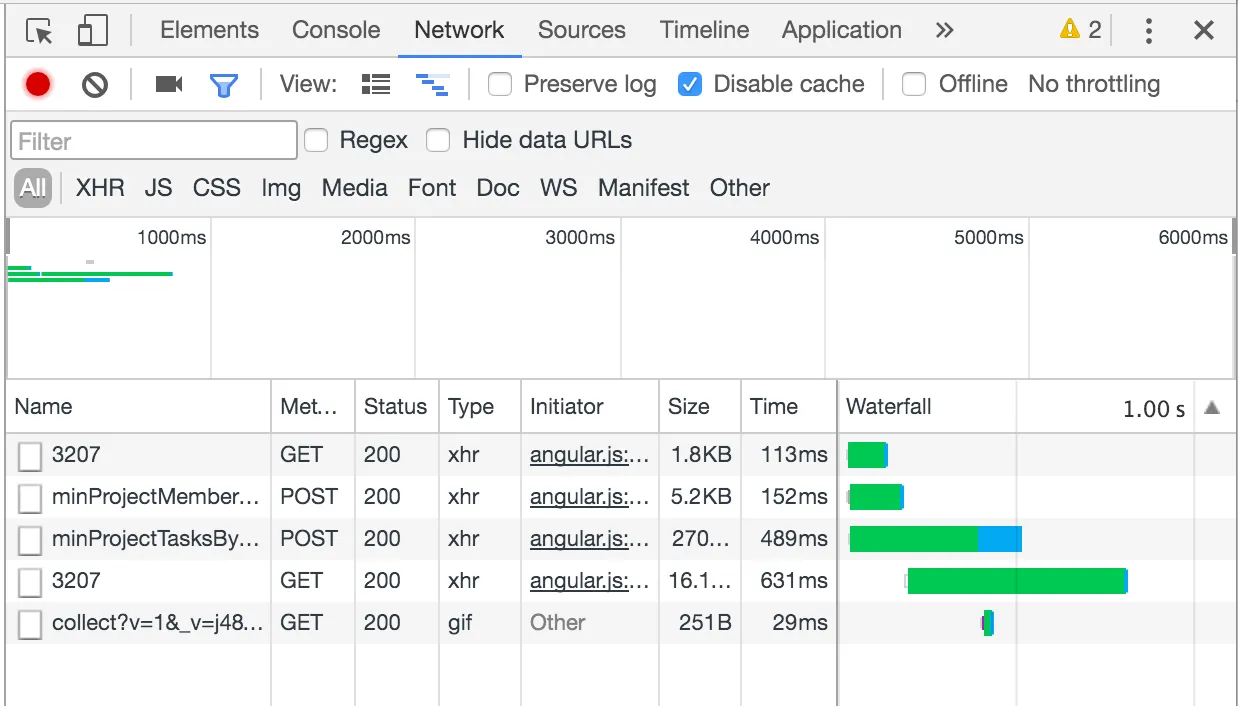
- Scan the network tab: Open Chrome DevTools, go to the Network tab, filter by JS or CSS, and look for 404 errors or slow-loading scripts originating from domains of apps you no longer use (such as legacy Klaviyo or Yotpo integrations).
- Search theme layout files: Open
theme.liquidand search for common app prefixes, commented-out app blocks, or hardcoded script tags from previous integrations. - Audit the snippets directory: Look for files containing names of uninstalled apps, such as
yotpo-initializer.liquid,bold-common.liquid, orklaviyo-onload.liquid.
App Integration Methods: App Embeds vs. Legacy Asset Injection
FeatureTheme App Extensions (App Embeds)Legacy Asset InjectionCode LocationHosted externally, injected dynamically via Shopify's APIHardcoded directly into liquid templates and asset foldersUninstallation CleanupAutomatic (Shopify removes all references instantly)Manual (leaves behind "ghost code" and orphaned files)Performance ImpactOptimized, deferrable, and easily toggled offOften render-blocking, leading to high Total Blocking Time (TBT)Step-by-Step Shopify App Performance Audit Checklist
Follow this systematic checklist to audit your store's codebase and isolate performance-sapping app remnants.
- Duplicate your live theme: Never perform code modifications directly on your active production theme; always work on a duplicate development copy.
- Run a baseline performance test: Document your current performance scores using Google PageSpeed Insights and WebPageTest to establish a benchmark.
- Search the codebase for app keys: Use the theme editor search tool to look for keywords like "app", "addon", "snippet", "include", or specific app brand names.
- Check the theme settings schema: Open
config/settings_schema.jsonand check for obsolete app configuration blocks that can be safely removed. - Verify the content_for_header output: Inspect your store's rendered source code to see if the
{{ content_for_header }}hook is still injecting scripts from deleted apps. - Document all findings: Create a list of all orphaned files and code injections before beginning the removal process.
If you lack the internal resources to execute these steps, consider partnering with our team for a professional Shopify Speed Optimization program to handle the cleanup safely.
Safely Removing Orphaned Liquid Snippets and Asset Files
How to Fix: Implementation Steps
Once you have identified the orphaned files and code blocks, use the following steps to safely remove them from your duplicate theme.
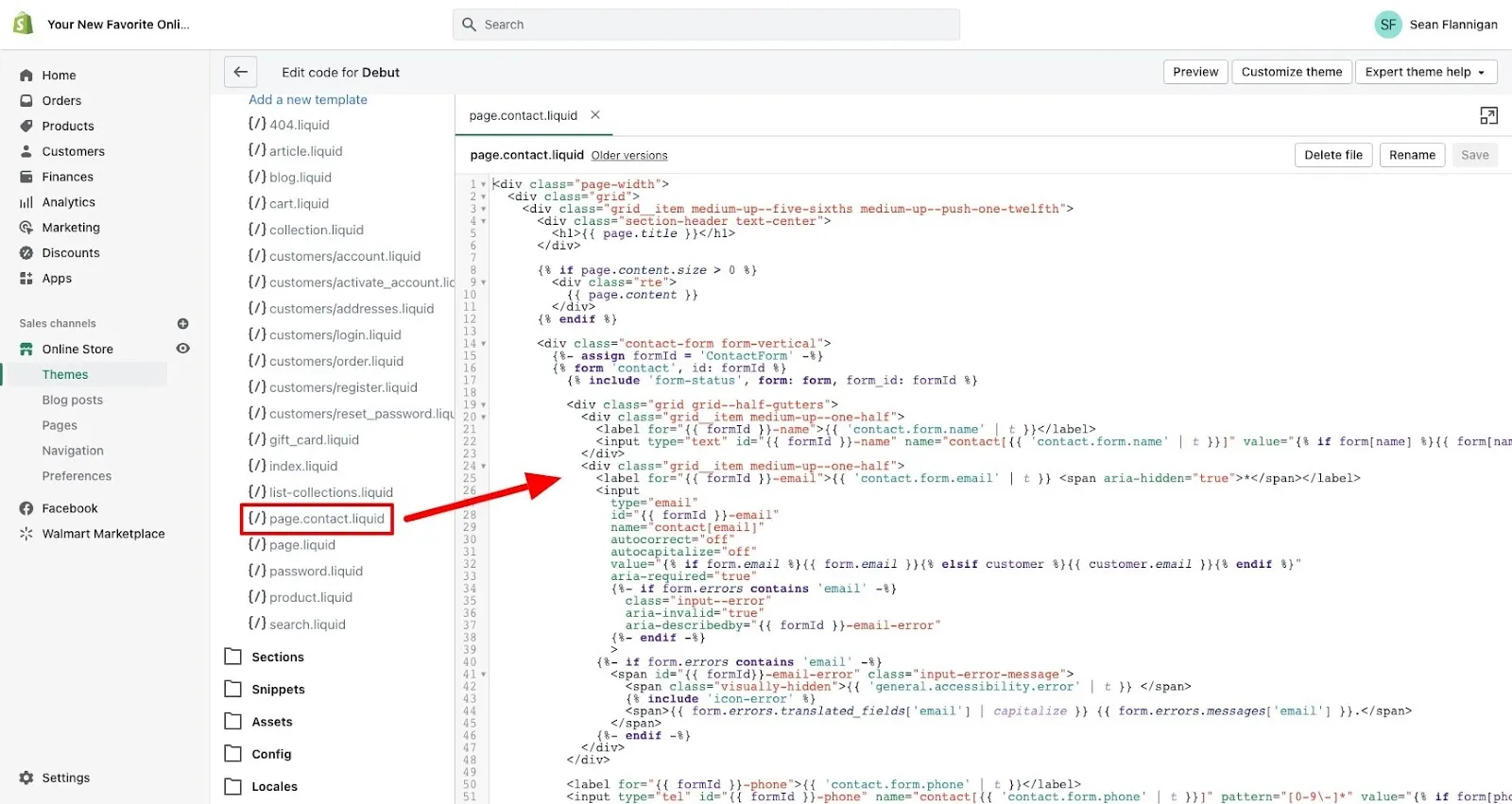
- Locate the file reference: Before deleting a snippet like
snippets/old-app.liquid, search your entire theme for instances of{% render 'old-app' %}or{% include 'old-app' %}. - Delete the references first: Remove or comment out the Liquid render tags inside your templates (e.g.,
product.liquid,cart.liquid) to prevent template compilation errors. - Delete the asset or snippet file: Navigate to the
snippets/orassets/directory and permanently delete the orphaned file. - Clean up theme.liquid: Remove any hardcoded script tags or stylesheet links pointing to the uninstalled app's Content Delivery Network (CDN).
- Preview and test: Preview the duplicate theme and thoroughly test key user flows, including the cart, checkout, and product galleries, to ensure no critical layout elements are broken.
For complex themes with deeply integrated apps, utilizing custom Shopify development ensures that critical layout elements do not break during code extraction.
Common Mistakes to Avoid
- Do not edit the live theme directly: A single syntax error in a Liquid file can break your entire store checkout or product pages, causing immediate revenue loss.
- Do not delete core theme dependencies: Avoid deleting files unless you are 100% certain they belong to an uninstalled app.
- Do not delete content_for_header: This Liquid tag is required for Shopify's core functionality; never delete it to remove app scripts. Instead, use Shopify's native App Embeds manager to disable app scripts.
Measuring the Speed Impact: Core Web Vitals and TTFB Post-Cleanup
In 2026, maintaining fast load times is critical for both search engine rankings and user conversion. After purging the ghost code, publish your clean duplicate theme and measure the performance improvements against your baseline metrics using primary tools like Web.dev Core Web Vitals.
- Time to First Byte (TTFB): Eliminating unnecessary liquid loops and database calls should reduce TTFB. Target a server response time of under 200ms.
- Largest Contentful Paint (LCP): Removing render-blocking JavaScript files from deleted apps allows your main content to load faster. Target an LCP of under 2.5 seconds.
- Interaction to Next Paint (INP): Deleting heavy third-party tracking scripts frees up the main thread, lowering input delay. Target an INP of under 200ms.
- Total Blocking Time (TBT): Fewer JS requests directly translate to lower CPU execution time. Target a TBT of under 150ms.
Best Practices to Prevent Future Shopify App Code Bloat
Implement these preventative measures to keep your Shopify theme clean, fast, and maintainable over the long term.
- Use App Embed blocks: Prioritize apps that utilize Shopify's Theme App Extensions (App Embeds), which automatically inject and clean up code when the app is installed or uninstalled.
- Maintain an installation log: Keep a spreadsheet documenting the installation date, files modified, and snippets added by every app you install.
- Request uninstall instructions: Before uninstalling an app, contact the app developer's support team to request their official manual code removal instructions.
- Test in development themes: Always evaluate new apps in a development or staging theme first to assess their performance impact before pushing them to production.
How Avelize Approaches This
Our team approaches app performance audits with a rigorous, risk-free methodology designed to maximize speed without risking downtime.
- Phase 1: Codebase Discovery & Mapping (Day 1-2): We map all active and legacy dependencies across layout files, snippets, and the
content_for_headerhook. - Phase 2: Safe Extraction on Staging (Day 3-4): We execute the code extraction on a duplicate staging theme, ensuring 0% disruption to checkout and cart flows.
- Phase 3: Core Web Vitals Verification (Day 5): We run rigorous synthetic and real-user monitoring tests to verify we hit our KPI targets: sub-200ms TTFB and LCP under 2.5s.
Frequently Asked Questions
How long does a Shopify app performance audit take?
A professional Shopify app performance audit typically takes between 3 to 5 business days to complete, depending on the age of the store and the historical volume of installed applications. For established Shopify Plus merchants with highly customized themes, the discovery phase requires mapping all active and legacy dependencies across layout files, snippets, and the content_for_header hook. The actual code extraction, testing, and post-cleanup verification are performed on a duplicate staging theme to ensure zero downtime. Once the purged theme is thoroughly tested across critical user journeys—such as cart additions and checkout flows—it is published live. This structured timeline guarantees that all orphaned JavaScript, CSS, and Liquid files are safely removed, resulting in immediate improvements to Core Web Vitals like Largest Contentful Paint (LCP) and Interaction to Next Paint (INP) without risking active storefront revenue.
Is a Shopify app performance audit worth it for small stores?
Yes. Even small stores suffer from speed degradation when legacy scripts block the main thread. Removing just one heavy, orphaned tracking script can improve conversion rates by reducing mobile page load times.
What is the difference between App Embeds and legacy asset injection?
Theme App Extensions (App Embeds) are managed natively by Shopify and automatically remove their code upon uninstallation. Legacy asset injection hardcodes scripts directly into your theme files, requiring manual code deletion after the app is uninstalled.
Ready to reclaim your store's speed? Contact our engineering team for a comprehensive Technical SEO & Speed Program today.
Published / Last reviewed: 2026
Search Intent Refresh Notes
This page has search demand in Google Search Console. Refresh it around the highest-impression query language, add concrete examples, clarify the decision criteria, and link to the most relevant service page or related guide.
Authoritative References
Use these official resources to verify platform-specific claims and implementation details before making commercial or technical decisions.
Related Shopify and Ecommerce Growth Guides
Continue with these related guides if you want to connect the strategy to implementation, SEO risk, performance, or conversion impact.
- AI Technical SEO Audits for Shopify Plus: Enterprise Guide
- Shopify Speed Optimization: How to Fix App Bloat
- Shopify Speed Optimization: Core Web Vitals Guide
- Shopify Plus Technical SEO Guide (2026)
- Shopify Plus E-Commerce With AI
Related Avelize Services and Guides: Services · Ecommerce Web Design Agency