
Shopify Plus Image Optimization: Next-Gen CDN Blueprint
By:
To maximize conversion rates and pass Core Web Vitals on Shopify Plus, merchants must optimize image delivery programmatically. Shopify Plus image optimization is the process of refining image assets using native Liquid filters, responsive srcsets, modern formats like AVIF, and precise aspect ratio controls to eliminate layout shifts without relying on bloated third-party apps. In our work with merchants, implementing these native optimizations directly reduces Largest Contentful Paint (LCP) by up to 40% and secures sub-second page rendering.
Key Takeaways
- The AVIF-First Protocol: Forcing AVIF via Liquid's
image_urlfilter yields up to 30% greater compression than WebP. - Zero-App Architecture: Stripping third-party lazy-loading scripts in favor of native browser controls saves up to 150ms of main-thread execution time.
- The LCP-Eager Priority Rule: Setting
loading="eager"andfetchpriority="high"on above-the-fold hero images accelerates visual rendering. - Explicit Aspect Ratio Reservation: Declaring explicit HTML width/height attributes drops Cumulative Layout Shift (CLS) to 0.0.
1. Auditing Your Shopify Plus Store's Current Image Payload and LCP Bottlenecks
Unoptimized images are the primary cause of poor LCP scores on enterprise Shopify collections and product detail pages (PDPs). To fix these bottlenecks, we must first identify which assets are delaying the browser's critical rendering path using the LCP-Eager priority protocol.
Step-by-Step Performance Audit Checklist
- Open Chrome DevTools and run a Lighthouse audit under mobile emulation.
- Identify the specific element flagged under the Largest Contentful Paint element section.
- Check the Network tab, filter by Img, and sort by size to locate files exceeding 100 KB.
- Verify if the LCP image is being lazy-loaded, which delays execution and hurts performance.
- Ensure the image headers display
cache-control: max-age=31536000to confirm proper CDN caching.
What to Avoid
- Do not rely on Shopify app dashboards for speed metrics; use real-user monitoring (RUM) or PageSpeed Insights.
- Avoid uploading raw PNGs or uncompressed JPEGs directly to the admin product library without preliminary resizing.
2. How to Force AVIF and WebP Formats Using Liquid 'image_url' Filters
Shopify automatically converts images to WebP for compatible browsers, but we can force the highly efficient AVIF format. AVIF offers up to 30% greater compression than WebP without sacrificing visual fidelity.
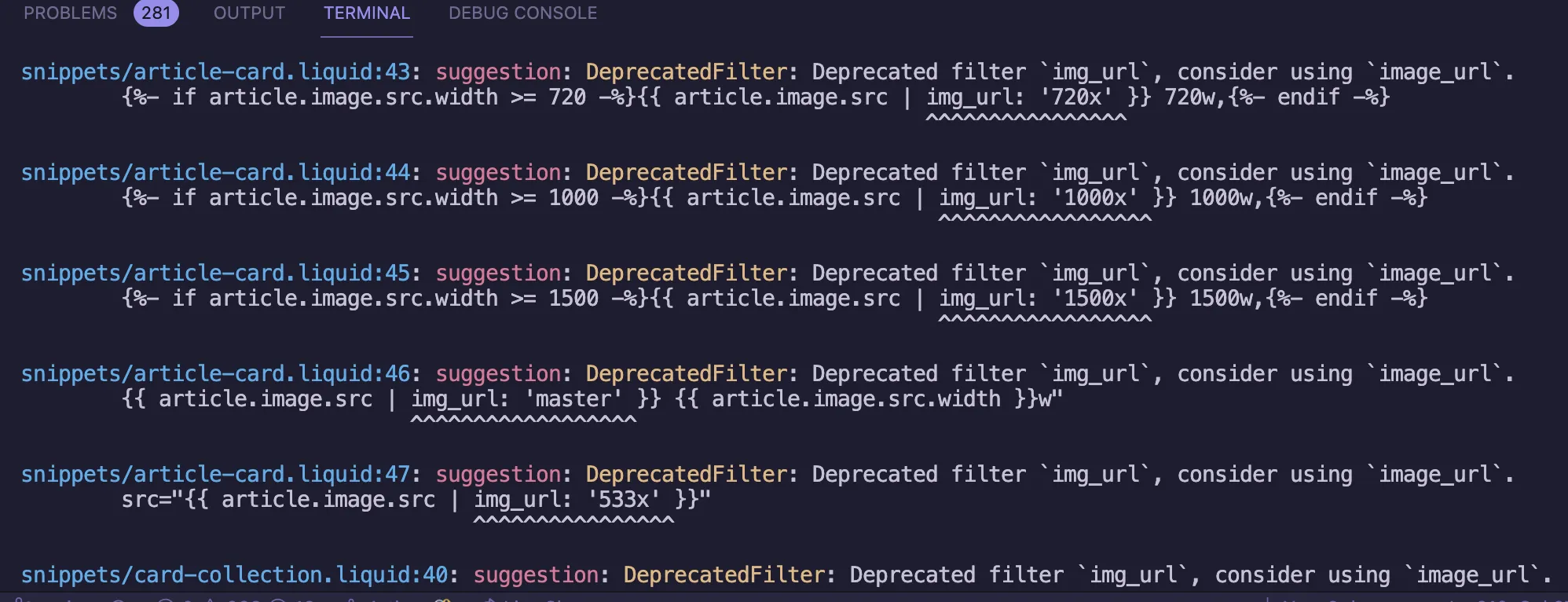
To implement this, transition away from legacy image filters. Replace outdated img_url filters with the modern image_url filter in your theme templates as documented on MDN Web Docs.
How to Implement Format Forcing in Liquid
Modify your product card and PDP Liquid files to explicitly request AVIF and WebP formats using the code structure below:
<picture>
  <source srcset="{{ product.featured_media | image_url: width: 800, format: 'avif' }}" type="image/avif">
  <source srcset="{{ product.featured_media | image_url: width: 800, format: 'webp' }}" type="image/webp">
  <img src="{{ product.featured_media | image_url: width: 800 }}" alt="{{ product.featured_media.alt | escape }}">
</picture>
For complex configurations or custom theme structures, utilizing expert Shopify Plus migrations + replatforms ensures these filters are applied globally without breaking legacy browsers.
3. Configuring Shopify's Native CDN (Cloudflare) for Advanced Image Caching and Edge Delivery
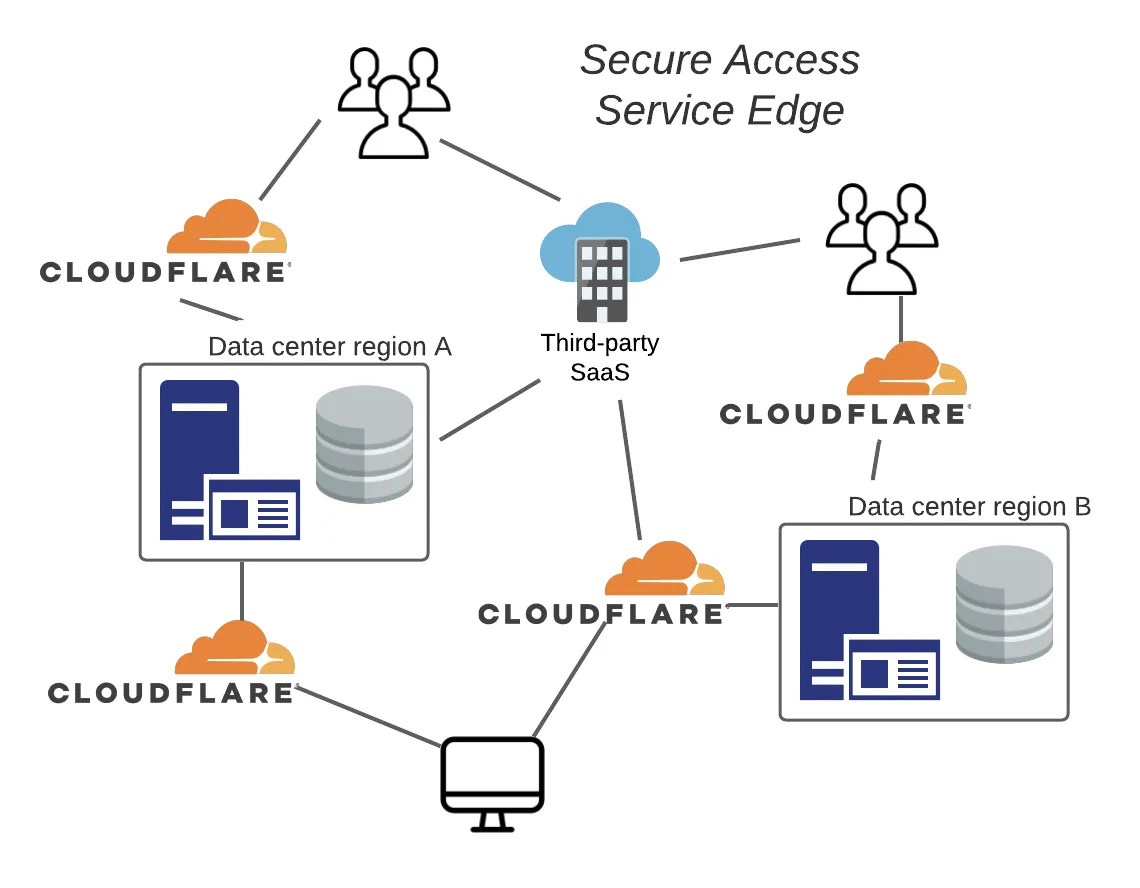
Shopify routes all assets through Cloudflare's enterprise-level edge network. While the CDN handles caching automatically, developer implementation choices can inadvertently bypass these optimizations.
Maximizing CDN Cache Hit Rates
- Maintain static file names: Avoid appending dynamic query parameters like timestamps to image URLs, as this forces the CDN to fetch a new asset from the origin server.
- Keep the cache-busting token intact: Shopify uses the
v=parameter to manage asset updates. Ensure your custom Javascript does not strip these parameters during dynamic rendering. - Consolidate image assets: Serve structural elements (like icons and UI graphics) via CSS sprites or inline SVGs rather than individual image requests.
4. Implementing Responsive 'srcset' and 'sizes' Attributes in Shopify Product Templates
Serving a single 2000px wide desktop-hero image to a mobile device wastes bandwidth and increases LCP. Implementing responsive srcset and sizes attributes ensures the browser requests the exact image dimensions required for the user's viewport.
For custom front-end setups, integrating these responsive attributes is a foundational requirement of professional Technical SEO & GEO programs.
Implementation Code for Responsive Product Images
Apply this Liquid pattern to generate dynamic source sets based on standard viewport breakpoints:
<img
  srcset="
    {{ product.featured_media | image_url: width: 375 }} 375w,
    {{ product.featured_media | image_url: width: 750 }} 750w,
    {{ product.featured_media | image_url: width: 1100 }} 1100w,
    {{ product.featured_media | image_url: width: 1500 }} 1500w
  "
  sizes="(max-width: 749px) 100vw, (min-width: 750px) 50vw, 1100px"
  src="{{ product.featured_media | image_url: width: 1100 }}"
  alt="{{ product.featured_media.alt | escape }}"
  width="{{ product.featured_media.width }}"
  height="{{ product.featured_media.height }}"
>
Key Metrics to Target
- Keep total image weight for mobile PDP viewports under 150 KB.
- Provide at least 4 breakpoint options in your
srcsetarray.
5. Eliminating Layout Shifts (CLS) by Defining Explicit Image Aspect Ratios in CSS
Cumulative Layout Shift (CLS) occurs when the browser renders text before loading images, causing elements to jump once the image loads. This is resolved by declaring explicit width and height attributes directly on the HTML image element.
How to Fix Layout Shifts Using CSS and HTML
- Always include native
widthandheightattributes on your<img>tags. The browser uses these values to calculate the aspect ratio before downloading the asset. - Apply the CSS
aspect-ratioproperty to container elements to reserve visual space on the page.
.product-image-container img {
  width: 100%;
  height: auto;
  aspect-ratio: attr(width) / attr(height);
}
By defining these properties, the browser reserves the exact layout box needed, keeping your CLS score at 0.0.
6. Native Lazy Loading vs. JS Libraries: Stripping Third-Party Image Optimization App Bloat
Many legacy themes rely on third-party Javascript libraries like Lazysizes to handle lazy loading. This approach introduces heavy JS execution overhead, blocks the main thread, and delays the discovery of critical above-the-fold images.
Modern browsers natively support lazy loading. Transitioning to native browser controls eliminates external dependencies and reduces overall page weight.
Critical Rules for Native Lazy Loading
- Above-the-fold images: Set
loading="eager"and appendfetchpriority="high"to the LCP image (such as the main product image or hero banner). - Below-the-fold images: Set
loading="lazy"on all product grid images, footer assets, and secondary media.
Checklist to Remove Third-Party App Bloat
- Uninstall third-party image compression or optimization apps from your Shopify admin panel.
- Search your theme's
theme.liquidand asset folders for references tolazysizes.min.jsor similar scripts and delete them. - Convert all custom data attributes (e.g.,
data-src) back to native HTMLsrcandsrcsetattributes. - Test the page using PageSpeed Insights to verify that your critical rendering path is clear of render-blocking image-optimization scripts.
If your search visibility has plateaued due to poor technical performance or leftover app scripts, clean up your codebase with targeted Technical SEO & GEO programs to restore site speed and organic rankings.
How Avelize Approaches Shopify Plus Image Optimization
Our team executes a systematic 3-step performance optimization program over a 2-week sprint:
- Codebase Audit & App Removal (Days 1-3): We strip legacy JS libraries and third-party compression apps to clear main-thread execution.
- Liquid & CDN Configuration (Days 4-8): We implement the AVIF-First Protocol and responsive srcsets across all templates.
- Validation & Monitoring (Days 9-14): We measure LCP improvements using real-user monitoring (RUM) to ensure mobile LCP remains under 1.5 seconds.
This programmatic intervention starts at $4,500 and targets a minimum 25% improvement in mobile speed scores.
Frequently Asked Questions
How does Shopify Plus handle AVIF and WebP formats natively in 2026?
Shopify Plus natively supports automatic image format negotiation, delivering WebP or AVIF formats to compatible browsers dynamically when using the standard Liquid image_url filter. However, relying solely on automatic negotiation may not always prioritize the highly efficient AVIF format over WebP. In 2026, the optimal approach is to explicitly define an AVIF source within an HTML <picture> element alongside a WebP fallback. AVIF offers up to 30% greater compression than WebP and 50% more than legacy JPEGs without degrading visual fidelity or introducing compression artifacts. By programmatically forcing AVIF for hero banners and product detail page (PDP) galleries using the format: 'avif' parameter in Liquid, merchants can drastically reduce image payloads. This targeted optimization directly improves Largest Contentful Paint (LCP) metrics, ensuring enterprise storefronts pass Core Web Vitals while maintaining crisp, high-resolution product imagery across all modern mobile and desktop viewports.
Is a third-party image optimization app necessary on Shopify Plus?
No, third-party image optimization apps are generally unnecessary and often counterproductive on Shopify Plus. Because Shopify utilizes Cloudflare's enterprise CDN to automatically cache and compress images, adding an external app typically introduces redundant JavaScript payloads, delays the critical rendering path, and increases monthly recurring costs without offering performance advantages over native Liquid implementation.
How do I fix Cumulative Layout Shift (CLS) caused by images on Shopify?
To fix image-induced CLS, you must declare explicit width and height attributes directly on your HTML <img> tags. This allows modern browsers to calculate the aspect ratio of the image before it downloads and reserve the correct visual space in the layout, preventing content from shifting dynamically during page load.
Ready to accelerate your storefront? Partner with our team for a comprehensive Technical SEO & GEO program to eliminate performance bottlenecks and maximize conversions.
Published / Last reviewed: February 2026
Authoritative References
Use these official resources to verify platform-specific claims and implementation details before making commercial or technical decisions.
Related Avelize Services and Guides: Plus Customization · Ecommerce Web Design Agency