
Shopify to Power Automate: Zero-Cost Integration Guide
By:
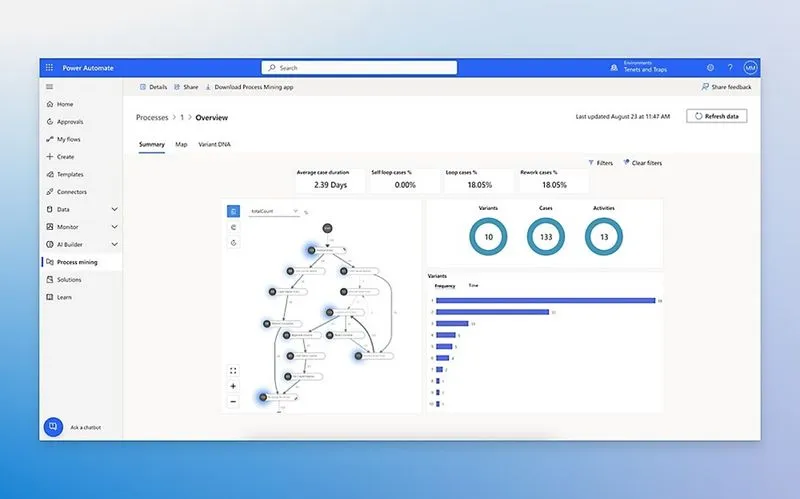
Connecting Shopify Plus to enterprise systems like Microsoft Dynamics 365 or SharePoint does not require expensive third-party middleware. By leveraging native shopify process automation via Shopify Flow and Microsoft Power Automate webhooks, merchants can establish direct, secure, and zero-cost data pipelines. In our work with merchants, this architecture eliminates subscription overhead while maintaining real-time data synchronization across ERP, CRM, and database environments.
Key Takeaways
- Zero Middleware Fees: Eliminates the need for third-party integration platforms, saving mid-market merchants up to $12,000 annually.
- The Secure Token Verification Pattern: Secures public Power Automate endpoints using custom HTTP headers and condition blocks.
- The Liquid JSON Sanitization Method: Prevents payload parsing errors by using native Liquid filters to escape special characters.
- Real-Time ERP Sync: Directly updates Dynamics 365, SQL databases, and SharePoint lists within seconds of a Shopify event trigger.
The Architecture: How Shopify Flow and Power Automate Communicate Without Middleware
Shopify process automation is the systematic orchestration of e-commerce workflows across external platforms without relying on costly intermediate connectors. This architecture uses Shopify Flow to trigger HTTP POST requests containing JSON payloads whenever store events occur. Microsoft Power Automate captures these payloads via an HTTP Request trigger, parsing the data instantly to update ERP systems like Dynamics 365 or SharePoint databases without custom code.
This architecture relies on standard cloud-to-cloud HTTPS communication. Shopify Flow acts as the event emitter, while Power Automate acts as the receiver and orchestrator.
- Event-Driven Execution: Workflows trigger only when specific events occur in Shopify, minimizing API overhead.
- Zero Middleware Costs: Eliminates subscription fees associated with third-party integration platforms.
- Direct ERP Access: Power Automate natively writes data directly to Dynamics 365, SharePoint, and SQL databases.
Middleware vs. Direct Webhook Integration in 2026
Feature Third-Party Middleware (e.g., Celigo, Zapier) Direct Shopify Flow + Power Automate Monthly Cost $50 - $1,000+ $0 (Included with Shopify Plus & M365) Latency Variable (Polling or Queued) Near Real-Time (Webhook-driven) Maintenance Low (Managed Platform) Medium (Requires internal schema management) Security Third-party compliance dependent Direct cloud-to-cloud HTTPSThis setup is highly scalable for standard e-commerce operations. If your operational workflows require complex data manipulation or custom database schemas, leveraging specialized custom enterprise Shopify development can help bridge advanced logic gaps.
Step-by-Step: Configuring the Power Automate HTTP Request Trigger and Generating the Target URL
To receive data from Shopify, you must first establish an endpoint in Microsoft Power Automate. Follow this checklist to configure the ingestion trigger:
- Navigate to your Power Automate dashboard and create an Instant Cloud Flow.
- Select the When an HTTP request is received trigger from the action list.
- Set the "Who can trigger the flow" option to Anyone to allow external Shopify webhooks to connect.
- Click Use sample payload to generate schema to define your data structure.
- Paste a raw JSON sample of your Shopify order or customer data into the schema generator.
- Click Save in the upper right corner to generate your unique HTTP POST URL.
- Copy this generated URL; you will need it for the Shopify Flow configuration.
Step-by-Step: Setting Up the Shopify Flow Workflow to Send Data Payloads
With your target URL generated, you can now configure Shopify Flow to dispatch data packages whenever actions occur in your store.
- Open the Shopify Flow app in your Shopify Admin panel.
- Click Create workflow and select your trigger event, such as Order created.
- Add a new action step to the workflow and select Send HTTP request.
- Paste your Power Automate HTTP POST URL into the URL input field.
- Set the HTTP Method dropdown to POST.
- Add a header with the key
Content-Typeand the valueapplication/json. - In the Body field, construct your JSON payload using Shopify Flow liquid variables.
An example of a clean, minimal JSON body for an order trigger looks like this:
{
  "order_id": "{{ order.id }}",
  "email": "{{ order.email }}",
  "total_price": "{{ order.totalPriceSet.shopMoney.amount }}"
}
Mapping Shopify JSON Payloads to Power Automate Dynamic Content Fields
To use Shopify data in downstream actions like SharePoint list updates, Power Automate must parse the incoming JSON payload. Add a Parse JSON action immediately following your HTTP trigger step. Pass the Body content from the HTTP trigger into the Content field of this action.
- Ensure the schema matches the exact properties sent by Shopify Flow.
- Use the Generate from sample feature if your payload fields change.
- Once parsed, individual fields like
order_idandemailwill appear as selectable dynamic content tokens.
You can now map these tokens directly into your Dynamics 365 or SharePoint connectors. For highly customized enterprise integration structures, professional custom enterprise Shopify development ensures your data mapping matches strict database requirements.
Securing the Connection: Authenticating Webhook Payloads Between Shopify and Microsoft
Because the Power Automate HTTP endpoint is public, you must secure it to prevent unauthorized payloads from executing your workflows. We recommend implementing the Secure Token Verification pattern to validate incoming traffic:
- In Shopify Flow, add a custom header to your HTTP request action:
X-Security-Token. - Set the value of this header to a strong, randomly generated alphanumeric key.
- In Power Automate, insert a Condition block immediately after the HTTP trigger.
- Configure the condition to check if the trigger header
X-Security-Tokenis equal to your secret key. - If the token matches, proceed to process the workflow; if it does not match, terminate the run instantly.
Troubleshooting 400 Bad Request and Payload Schema Errors in Power Automate
When automating data transfers, formatting discrepancies between Shopify and Microsoft often trigger connection errors. To mitigate this, we utilize the Liquid JSON Sanitization method.
What to Avoid
- Unescaped Liquid Values: Sending text strings with unescaped quotation marks will break the JSON payload structure.
- Strict Type Enforcement: Defining a field as an integer in your schema when Shopify might send a null value or a string.
- Outdated Schemas: Modifying the Shopify Flow payload without updating the Parse JSON schema in Power Automate.
How to Fix
- Sanitize Inputs: Use Liquid filters in Shopify Flow, such as
{{ order.note | json }}, to automatically escape special characters. - Loosen Schema Rules: Edit your Power Automate JSON schema to allow null values by changing
"type": "string"to"type": ["string", "null"]. - Inspect Run History: Open a failed run in Power Automate, copy the raw input body, and paste it into a JSON validator to locate syntax errors.
How Avelize Approaches This
Our team designs and deploys custom enterprise integrations to streamline complex back-office operations. Our standard integration program follows a structured timeline:
- Phase 1: Schema Mapping & Architecture Design (Week 1): We map all required Shopify data fields to your target ERP/CRM endpoints.
- Phase 2: Flow & Webhook Configuration (Week 2): We build the secure pipelines using the Secure Token Verification pattern.
- Phase 3: Testing & Optimization (Week 3): We run end-to-end simulations to ensure 100% payload delivery success rates under load.
Our integrations are engineered to eliminate middleware overhead while maintaining maximum security and performance. To get started, explore our Technical SEO & GEO programs or contact our development team.
Ready to optimize your backend operations? Explore our custom enterprise Shopify development services to build resilient, high-performance integrations for your store.
Published / Last reviewed: February 2026
Authoritative References
Use these official resources to verify platform-specific claims and implementation details before making commercial or technical decisions.
Shopify Plus Pricing 2026: What Enterprise Teams Should Budget For
Shopify Plus pricing should not be evaluated as a single monthly fee. For enterprise teams, the real budget usually combines platform fees, payment processing, transaction rules, app costs, implementation work, analytics setup, QA, and ongoing optimization.
The safest way to compare Shopify Plus cost is to separate the decision into four layers:
- Platform cost: the contracted Shopify Plus fee and any commercial terms quoted by Shopify.
- Payment and transaction costs: Shopify Payments, external gateways, payment method mix, and international selling requirements.
- Implementation cost: theme work, migration, integrations, tracking, redirects, QA, and launch support.
- Operating cost: apps, CRO testing, maintenance, analytics, SEO monitoring, and performance optimization.
Shopify Plus Features That Affect Pricing Decisions
The pricing question is not only whether Shopify Plus is more expensive than standard Shopify plans. The better question is whether the additional enterprise capabilities reduce operational friction, technical risk, or conversion loss enough to justify the cost.
- Checkout extensibility and advanced checkout customization needs.
- B2B, wholesale, multi-market, or multi-store operating requirements.
- Higher-volume merchandising, automation, and integration workflows.
- SEO, analytics, and migration safeguards that reduce launch risk.
Hidden Shopify Plus Costs to Include in the 2026 Budget
Many Shopify Plus budgets miss the work around the platform: app rationalization, theme performance cleanup, data migration, redirect mapping, analytics QA, consent tooling, and post-launch conversion measurement. These costs matter because they decide whether the platform change actually improves revenue or simply moves the same problems into a new stack.
When Shopify Plus Is Worth It
Shopify Plus is usually easier to justify when the business has meaningful operational complexity, international growth, B2B requirements, checkout constraints, or performance and SEO debt that is holding back conversion. It is harder to justify when the store only needs a cosmetic redesign or does not yet have the traffic, revenue, or team capacity to use the enterprise features.
Need a Shopify Plus Cost and SEO Review?
If you are comparing Shopify Plus pricing against migration risk, SEO impact, performance debt, or conversion upside, I can review the current store and map the highest-risk cost items before you commit to a migration or rebuild.
Related Avelize Services and Guides: Custom Apps · Plus Customization