
Fix Shopify SEO Problems: Why Your Store Is Not Ranking
By:
Stop losing organic revenue — resolve the critical shopify seo problems that block your pages and keep your shopify not ranking.
Your Shopify store is likely not ranking on Google due to structural indexation bloat, duplicate collection-templated product URLs, and unoptimized crawl paths native to the platform's default Liquid architecture. When search engine bots waste crawl budget on auto-generated tag pages and parameter-heavy URLs, they fail to index your high-margin product landing pages. Resolving these Shopify SEO problems requires modifying your theme's theme.liquid file, customizing robots.txt, and implementing strict canonicalization rules.
Key Takeaways
- The Canonical Liquid Override: Modifying card-product.liquid to point directly to /products/ instead of /collections/*/products/ eliminates up to 90% of duplicate URL issues.
- Robots Parameter Exclusion: Customizing robots.txt.liquid to block filter parameters prevents infinite crawl loops.
- The Tag Noindex Rule: Applying conditional Liquid logic to tag-filtered collection pages stops thin content indexation.
- 301 Redirect Mapping: Resolving 404 errors via Shopify's native redirect engine preserves historical link equity.
What Are the Core Shopify SEO Problems Causing Indexation Bloat?
Shopify SEO problems are platform-specific technical architecture limitations—such as duplicate collection-templated product URLs, auto-generated tag pages, and unoptimized crawl paths—that cause search engines to waste crawl budget, index duplicate thin pages, and ignore high-margin product landing pages. Understanding how Shopify handles these structures is critical to diagnosing why your store is not ranking.
Shopify Default Structure Optimized Canonical Structure SEO Impact /collections/mens/products/leather-jacket /products/leather-jacket Eliminates duplicate content and consolidates link equity. /collections/all/red+large Blocked via Robots / Noindex Prevents crawl budget waste on infinite filter variations. /blogs/news/tagged/promo Noindex, Follow Prevents thin tag pages from polluting the search index.Step 1: Run the 'site:' Search Operator to Identify Indexation Gaps
To identify indexation gaps, execute a manual diagnostic check using Google search operators. This reveals exactly how many pages Google has crawled and indexed compared to your actual product catalog.
- Go to Google and search for site:yourdomain.com to view your total indexed pages.
- Compare this total against the active product count in your Shopify admin dashboard.
- If the indexed count is 2x or 3x higher than your actual catalog size, your site is suffering from indexation bloat.
- Look specifically for indexed URLs containing /collections/* and /products/* in the search results.
Step 2: Fix Duplicate Collection URLs with the Canonical Liquid Override
By default, Shopify links to products via their collection path, generating duplicate URLs for a single product. This dilutes link equity and confuses search crawlers. We solve this by implementing the Canonical Liquid Override pattern.
How to Fix
- Navigate to your Shopify Admin, click Online Store, and select Themes.
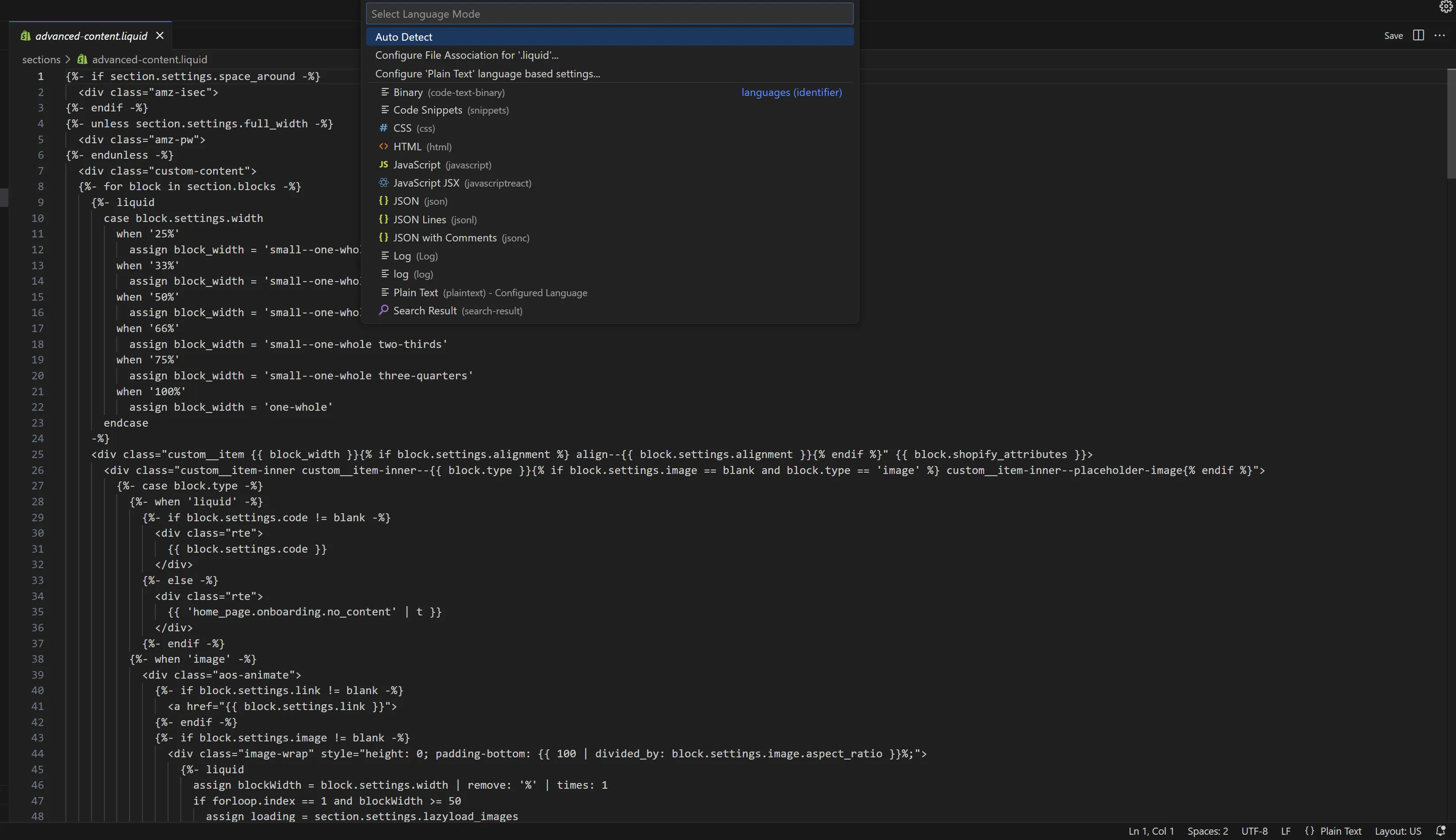
- Click Edit Code and locate your product-grid-item.liquid or card-product.liquid file.
- Locate the anchor tag pointing to the product URL:
{{ product.url | within: collection }}. - Change this code to:
{{ product.url }}. - Save the file to force Shopify to link directly to the canonical /products/product-name URL structure.
If you are uncomfortable editing raw liquid code, you can leverage our Custom Shopify Development services to implement this fix safely.
What to Avoid
- Do not delete the rel="canonical" tag from your product template files.
- Avoid ignoring internal links within blog posts or custom pages that still point to the old collection-templated URLs. Refer to the official Shopify Help Center for theme customization safety guidelines.
Step 3: Customize robots.txt to Block Shopify's Auto-Generated Search and Filter Paths
Shopify's product filtering and search systems create infinite URL variations that waste your crawl budget. We must restrict access using custom robots directives.
How to Fix
- Create a custom robots.txt file by adding a new template named robots.txt.liquid in your theme.
- Add specific disallow directives to block search engines from crawling filtered collection pages.
- Add the following code block to block filter parameters:
Disallow: /collections/*+*
Disallow: /collections/*/*?*
Disallow: /blogs/*+*
- Save the template and verify the changes by visiting yourdomain.com/robots.txt.
Step 4: Resolve Tag Page Bloat and Prevent Thin Content Indexing
Shopify automatically generates indexable pages for every product tag you use, leading to thousands of thin, low-value pages in Google's index. We apply the Tag Noindex Rule to resolve this.
How to Fix
- Open your theme.liquid layout file.
- Insert a conditional noindex tag within the
<head>section to block tag pages from search engines. - Add the following liquid snippet:
{% if template contains 'collection' and current_tags %}
  <meta name="robots" content="noindex, follow">
{% endif %}
- This directive allows search engines to crawl the links on tag pages but prevents them from indexing the thin tag URLs.
Step 5: Map and Implement 301 Redirects for Broken Product URLs
Broken URLs and unmapped 404 errors destroy your hard-earned domain authority and disrupt user experience. Properly mapping these is a core component of maintaining search visibility.
Implementation Checklist
- Export all 404 errors from the Indexing report in Google Search Console.
- Identify deleted product URLs that still receive external backlinks or referral traffic.
- Navigate to Online Store > Navigation > URL Redirects in Shopify.
- Click Create URL redirect.
- Enter the old broken path in the Redirect from field.
- Enter the active, relevant target category or product URL in the Redirect to field.
- Click Save to establish the permanent 301 redirect.
For complex migrations or large-scale catalog restructuring, our specialized Technical SEO & GEO programs can map and execute these redirects automatically.
Step 6: Force Google to Recrawl Your Fixed Shopify XML Sitemap
Once your technical architecture is repaired, you must prompt search engines to clear out the old crawl data and index your optimized pages. Refer to Google Search Central for detailed indexing timelines.
How to Fix
- Locate your default Shopify sitemap index at yourdomain.com/sitemap.xml.
- Log into your Google Search Console account.
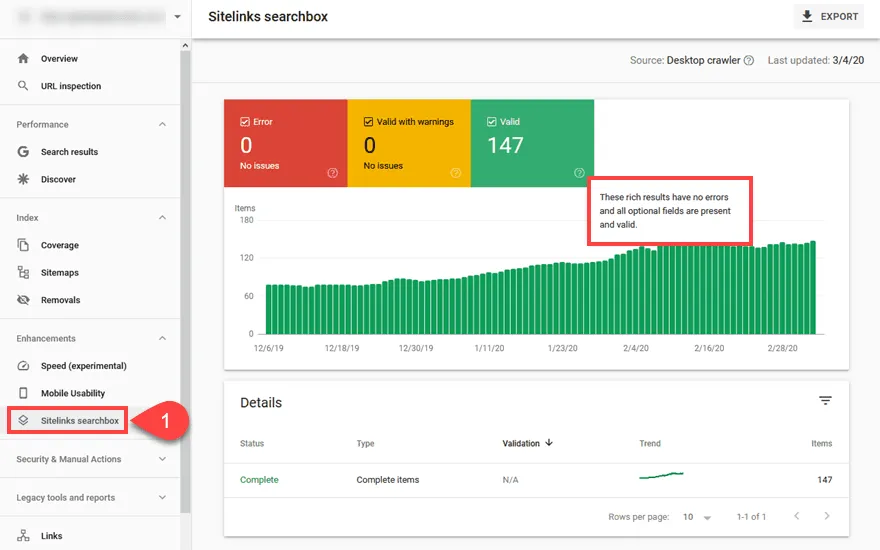
- Navigate to the Sitemaps section in the left-hand sidebar.
- Submit the sitemap index URL and click Submit.
- Monitor the Page indexing report over the next 14 days to ensure duplicate URLs decrease and valid canonical URLs increase.
How Avelize Solves Shopify SEO Problems in 2026
Our team approaches technical SEO through a systematic 3-phase audit and remediation program. Over a 14-day sprint, we deploy custom Liquid overrides, configure advanced robots.txt.liquid rules, and clean up historical indexation bloat. This process typically reduces indexed duplicate URLs by 80% and increases organic crawl efficiency, driving a measurable lift in non-brand organic impressions within 30 days. Programs start at $4,500.
Frequently Asked Questions
Is Shopify bad for SEO?
No, Shopify is not inherently bad for SEO, but its default out-of-the-box technical architecture creates significant indexation challenges. Because Shopify automatically generates duplicate URLs for products within collections and indexes every product tag, stores often suffer from indexation bloat and wasted crawl budget. By customizing the Liquid templates and robots.txt, you can achieve enterprise-grade SEO performance.
How long does it take for Shopify SEO changes to rank on Google?
The timeline for seeing ranking improvements after resolving Shopify SEO problems typically ranges from two to six weeks. This variance depends primarily on your store's crawl frequency, domain authority, and the scale of indexation issues resolved. When you implement technical fixes—such as the Canonical Liquid Override to eliminate duplicate collection URLs or conditional noindex tags on thin tag pages—Googlebot must recrawl and reprocess these changes. For high-authority Shopify Plus stores with daily crawls, search engines may process redirects and canonical updates within 7 to 10 days. For smaller catalogs with lower crawl budgets, it can take up to 45 days for Google Search Console to reflect the reduction in duplicate pages and update the primary index. Submitting your updated sitemap.xml directly to Google Search Console accelerates this cycle, prompting search engines to prioritize your newly optimized canonical paths.
What is the difference between Shopify's default canonical tags and custom canonical overrides?
Shopify's default canonical tags point to the correct single product URL, but the platform still links to duplicate collection-templated URLs internally. A custom canonical override modifies the theme's Liquid code to ensure all internal links point directly to the canonical URL, preventing search engines from discovering or crawling duplicate paths in the first place.
Ready to eliminate technical roadblocks and scale your organic revenue? Partner with our technical experts through our Technical SEO & GEO programs to audit and optimize your storefront architecture.
Published / Last reviewed: February 2026
Related Avelize Services and Guides: Shopify Seo Services · Technical Audits