
Fix Shopify Blog Not Indexed: 5 Technical SEO Steps
By:
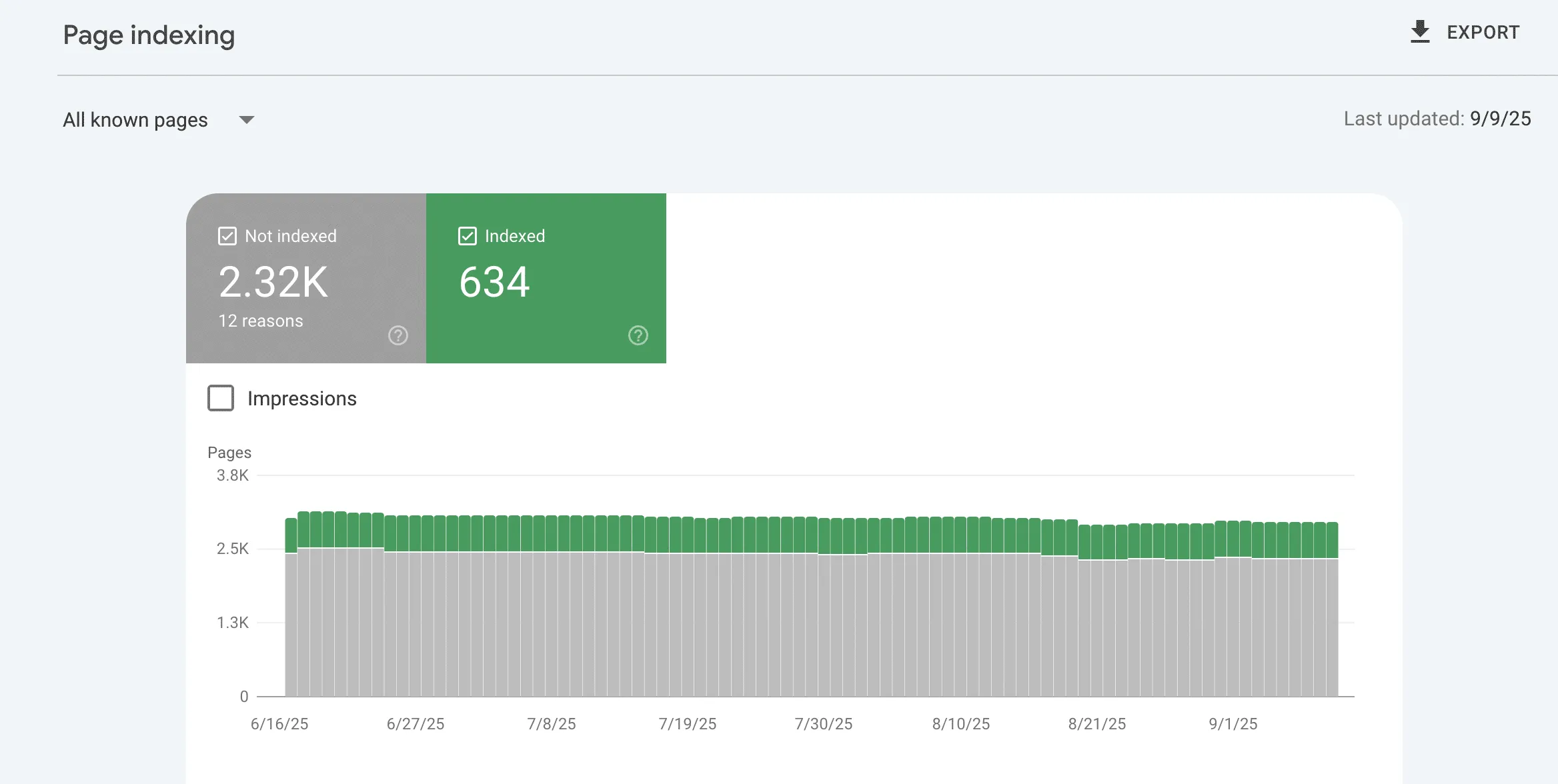
When your Shopify blog posts are not indexed by Google, it is typically caused by hardcoded "noindex" tags in your theme.liquid file, crawl-preventing rules in your robots.txt, or duplicate content exclusions from tag-filtered URLs. To resolve this, you must audit your theme's Liquid templates, submit nested blog sitemaps directly to Google Search Console, and implement canonical tags to prevent crawl budget waste. In our work with merchants, resolving these technical bottlenecks restores search visibility within 48 to 72 hours.
Key Takeaways
- The Theme Audit: Locate and remove misplaced
<meta name="robots" content="noindex">tags intheme.liquid. - The Tag-Crawl Block Pattern: Add
Disallow: /blogs/*/tagged/*torobots.txt.liquidto save crawl budget. - The 12-Post Pagination Standard: Display at least 12 posts per page to prevent orphaned blog posts.
- Direct Sitemap Submission: Submit
/sitemap_blogs_1.xmldirectly to Google Search Console instead of just the parent index.
Why Shopify Blog Posts Fail to Index
Shopify SEO indexation is the process by which Google crawls, parses, and adds your Shopify store's blog content to its search index. While Shopify is generally search-friendly out of the box, its rigid URL structure and automated sitemap generation can create technical friction. Understanding how Shopify's default behavior compares to an optimized setup is critical for maintaining search visibility.
Feature / Configuration Shopify Default Behavior Optimized Indexing Setup (2026) Sitemap Updates Delayed parent sitemap pinging Direct nested blog sitemap submission Tag Pages Crawled freely, causing duplicate content Blocked via robots.txt.liquid rules Internal Linking Deep pagination causing orphaned posts Dynamic related-article linking bridgesStep 1: Diagnose the Exact Exclusion Reason in Google Search Console
A Shopify blog is not indexed when Googlebot is blocked by "noindex" tags in the theme.liquid file, crawl-preventing rules in the robots.txt file, or when nested tag URLs create duplicate content issues that cause Google to exclude the canonical blog post.
To resolve the issue, you must first identify how Google classifies the excluded URLs. Relying on manual site searches is insufficient for technical diagnostics.
Use this diagnostic checklist to locate the error:
- Navigate to Google Search Console and click on Pages under the Indexing menu.
- Filter the report by selecting the All submitted pages option to isolate sitemap errors.
- Scroll down to the "Why pages aren't indexed" table to find the exact status of your blog URLs.
- Run the Inspect URL tool on an unindexed blog post to view the live HTTP response code and canonical declaration.
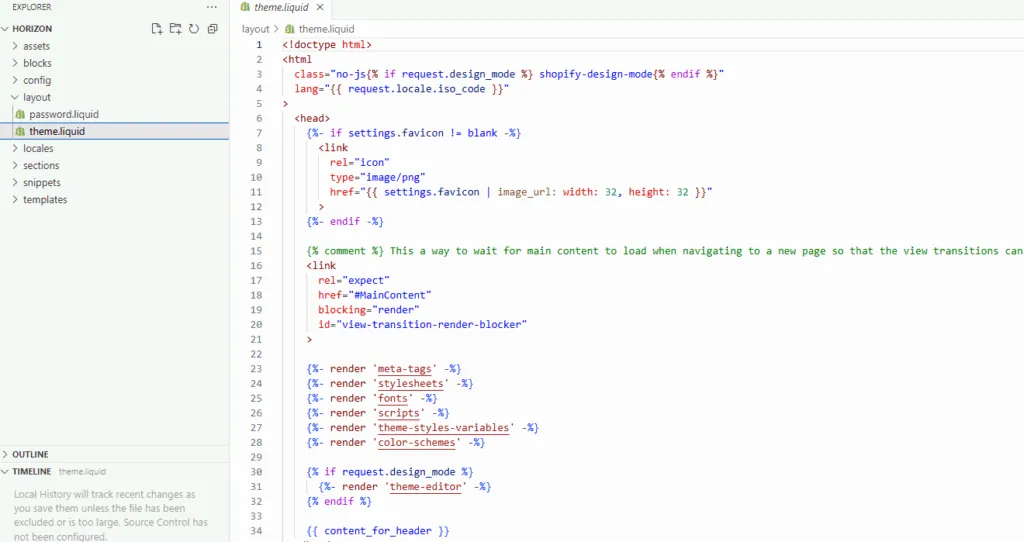
Step 2: Inspect theme.liquid for Hardcoded 'noindex' Tags on Blog Templates
Developers often insert global "noindex" rules during the staging phase of a Shopify store. If these rules are not properly scoped, they can carry over to the live theme and block your entire blog directory.
How to Fix:
- Go to your Shopify Admin, click Online Store, select Themes, and click Edit Code.
- Open the
layout/theme.liquidfile. - Search for
noindexusing the search command. - Locate any conditional Liquid statements that target blog templates, such as:
{% if template contains 'blog' %}. - Remove the
<meta name="robots" content="noindex">tag from within those conditionals.
If you are uncomfortable modifying your theme's core template files, you can leverage professional Shopify Development Services to clean up your liquid code safely.
Step 3: Resolve Shopify Sitemap.xml Lag and Submit Directly to Google
Shopify automatically generates your sitemap at /sitemap.xml, but the platform frequently experiences latency when updating nested sitemaps after new blog posts are published.
How to Fix:
- Locate your specific blog sitemap URL directly by navigating to
yourdomain.com/sitemap_blogs_1.xml. - Copy this specific URL, navigate to the Sitemaps report in Google Search Console, and submit it directly.
- For urgent posts, paste the exact blog URL into the Google Search Console search bar and click Request Indexing.
What to Avoid:
- Do not submit the main parent sitemap index multiple times, as this does not force Google to re-crawl nested URLs.
- Avoid using third-party apps that generate custom sitemaps at non-standard paths, which can confuse crawler bots.
Step 4: Fix Duplicate URL Paths Created by Shopify Blog Tags and Collections
Shopify's default architecture automatically generates tag-filtered views of your blog (e.g., /blogs/news/tagged/tag-name). Google often crawls these URLs, identifies them as duplicate content, and excludes both the tag page and the primary blog post.
How to Fix:
- Ensure your theme contains a self-referencing canonical tag by checking the
<head>of yourtheme.liquidfile. - Verify that the following exact code is present:
<link rel="canonical" href="{{ canonical_url }}">. - Add a rule to your
robots.txt.liquidfile to block search engines from crawling tagged blog paths:Disallow: /blogs/*/tagged/*.
To systematically eliminate crawl budget waste across your entire store, explore our specialized Technical SEO & GEO programs.
Step 5: Build an Automated Internal Linking Bridge to Orphaned Blog Posts
New blog posts often become "orphaned" because Shopify pagination pushes older posts deep into the site directory. If a blog post is not linked from an indexed page, Googlebot will stop crawling it.
How to Fix:
- Add a "Related Articles" section to your product pages to dynamically link to relevant blog posts.
- Ensure your main blog index page displays at least 12 posts per page before paginating.
- Manually add at least 3 internal hyperlinks from high-authority, indexed collection pages to your target blog posts.
For scalable, programmatic internal linking strategies that do not degrade your page speed, implement our tailored SEO & Data solutions.
Common Mistakes to Avoid
- Leaving Password Protection Active: Googlebot cannot bypass the Shopify storefront password, which completely blocks indexation.
- Blocking CSS and JS Files: Custom rules in your
robots.txt.liquidfile that restrict access to assets can prevent Google from rendering your blog pages. - Ignoring Redirects: Changing a blog post handle without checking the "Create redirect" box creates 404 errors that damage your crawl health.
How Avelize Approaches Shopify SEO Indexation
Our team implements a comprehensive technical SEO audit to identify and resolve crawl blocks. Within 5 business days, we deploy custom Liquid fixes, optimize your robots.txt, and build dynamic internal linking structures. This program typically costs $1,500 to $3,000 as an initial setup, targeting a 100% indexation rate of your core content assets within 14 days.
Frequently Asked Questions
How long does it take Google to index a Shopify blog post?
For a standard Shopify store, Google typically indexes new blog posts within 4 to 24 hours if your site architecture is optimized and your sitemap is clean. However, if your store suffers from unresolved crawl budget issues, orphaned pages, or nested sitemap latency, indexation can take anywhere from 2 to 6 weeks, or fail entirely. To accelerate this timeline, we recommend bypassing Shopify's automated sitemap updates and manually submitting your specific blog sitemap path—typically /sitemap_blogs_1.xml—directly within Google Search Console. Additionally, using the URL Inspection tool to request manual indexing can reduce the wait time to under 12 hours. Ensuring that your new post has at least three internal links from high-authority, already-indexed collection or product pages will also signal to Googlebot that the content is high-priority and ready for immediate crawling.
Why is my Shopify sitemap not updating in Google Search Console?
Shopify generates sitemaps dynamically, but latency between publishing a post and sitemap regeneration is common. Submitting the nested blog sitemap directly bypasses this delay.
Does Shopify block search engines by default?
No, but password protection, staging theme configurations, or customized robots.txt rules can inadvertently block Googlebot from crawling your blog directory.
If your content remains invisible to search engines, our technical team can audit and resolve your crawl blocks. Partner with us for a comprehensive Technical SEO & GEO program to unlock your organic revenue potential.
Published / Last reviewed: October 2026
Authoritative References
Use these official resources to verify platform-specific claims and implementation details before making commercial or technical decisions.
- Shopify Plus overview
- Google SEO Starter Guide
- Google canonicalization guide
- Google structured data introduction
Related Shopify and Ecommerce Growth Guides
Continue with these related guides for implementation, SEO, performance, and conversion context.
- Shopify Programmatic SEO: Scale Large Catalog Links
- Programmatic SEO: Indexing Shopify Filter Pages Safely
- Shopify Plus SEO Optimization: What Works in 2026
- Shopify Plus Technical SEO: Fix Funnel Leaks
- Shopify SEO Services: Technical Vetting Guide [2026]
- Programmatic SEO for Shopify Markets: Scale Catalog Traffic
- Outsource Shopify SEO: Agency vs Consultant Vetting
- Enterprise Shopify SEO Services: Technical Retainer Guide
- Programmatic SEO for Ecommerce: Scale Catalog Traffic
- Shopify Markets International SEO: Technical Setup Guide
Related Avelize Services and Guides: Technical Audits · Shopify Seo Services